
Clash Mi for iOS: Installation, Subscription Import, and Troubleshooting (2026)
Clash Mi is a proxy client built around the mihomo core, also known as Clash Meta. It supports iOS, macOS, Android, and Windows and is distributed as open-source software at no charge. At the time of the source review, the author had used it as the primary mobile client for about a month and reported a clean interface, no intrusive advertising, reliable background refreshes, and stable connections.
This guide follows four steps: download the client, import a subscription, connect, and troubleshoot common problems.
Installed Clash Mi but have no servers?
A free client does not include a server service. Confirm that the provider offers a Clash / Mihomo subscription and read the plan and iPhone subscription selection notes. With an existing subscription, continue to the import steps below without buying another.
Website: https://clashmi.app/
What the source review liked
- Current core: Clash Mi includes and updates
mihomo, the core commonly called Clash Meta. It is intended to support mainstream Clash-compatible profiles, although compatibility ultimately depends on the profile syntax and features used. - Simple setup: A valid Clash subscription URL can be pasted directly into the app without extensive manual settings.
- Clean interface: The main screen avoids unnecessary controls and makes the basic connection flow easier for beginners.
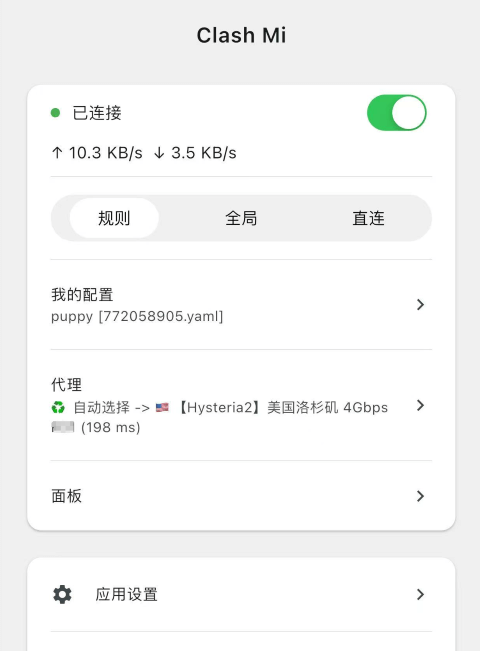
Requirements
| Platform | Minimum version listed by the source |
|---|---|
| iOS | 15 or later |
| macOS | 12 or later |
| Android | 8 or later |
| Windows | 10 or later |
Prepare a Clash subscription
Clash Mi is only the client. It needs a valid Clash-compatible subscription to provide nodes.
If you do not have one, consult the proxy-service selection and review guide.
1. Download and install Clash Mi
iOS and iPadOS
iPhone and iPad users can obtain the app through either channel:
- Stable App Store release: Open Clash Mi in the App Store
- TestFlight beta: Join the TestFlight beta
Important details:
- Clash Mi may not appear under a mainland China Apple ID. A supported App Store region such as the United States or Hong Kong may be required. The following page lists shared accounts and their safety restrictions:
Shared non-mainland Apple IDs intended only for App Store sign-in. Read the device-lock and privacy warnings before use.
- The App Store and TestFlight versions cannot normally be installed side by side. Installing one may replace the other.
Before switching versions, back up subscriptions, custom configurations, and settings using methods supported by the installed version. Confirm that the target version is still downloadable with your account and that you understand how to restore or re-import the backup. Backups may contain subscription credentials; do not share them publicly. Apple's TestFlight terms warn that switching versions or deleting a beta can cause data loss; a backup does not guarantee complete recovery across versions. Do not make uninstalling the default first step.
macOS
The Mac version is installed and updated using an official DMG package and requires macOS 12 (Monterey) or later. Open the macOS section of the official download page, choose the stable or beta release, open the downloaded DMG, and drag Clash Mi into Applications. See the official macOS installation guide for details.
Android, HarmonyOS, Windows, and Linux
Download the package for the intended platform from the project's download page:
2. Connect in three steps
The screenshots below use iOS.
Step 1: import the subscription
Open My Profiles in the bottom navigation, select + in the upper-right corner, choose Add Profile URL, and paste the provider's subscription URL.

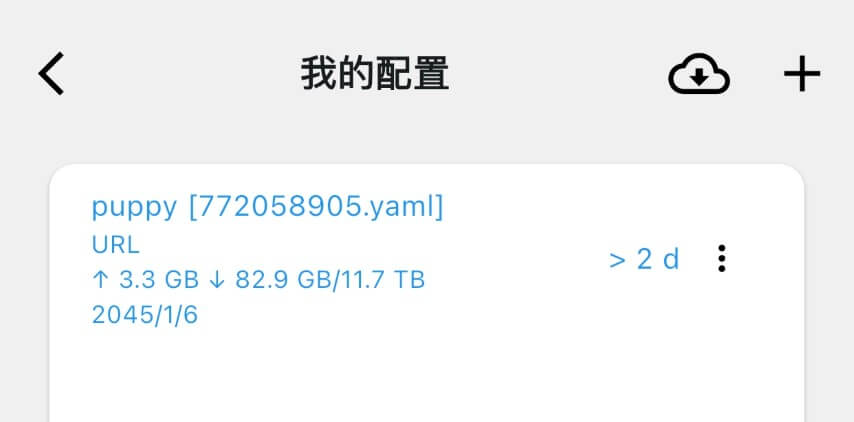
Step 2: activate the imported profile
After importing, select the new subscription card in the profile list so the app knows which profile to use.
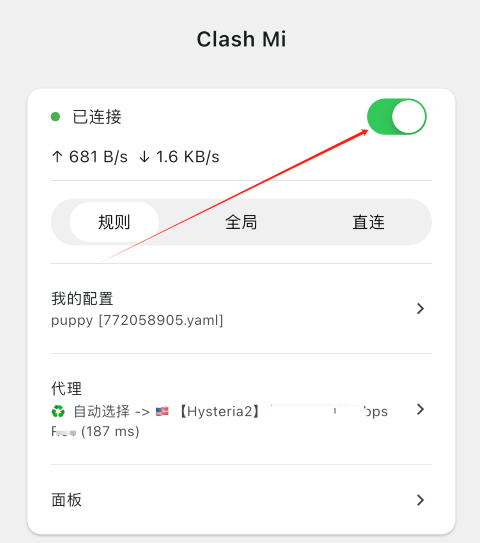
Step 3: connect
Return to Home and select the round connection button. If the system asks to add a VPN configuration, review the request and allow it.
3. Online dashboard
The Dashboard section in Clash Mi provides most of the controls that experienced users may know from browser-based Mihomo dashboards.
- The dashboard is protected by a
secretby default. View it under Core Settings. - If the built-in dashboard does not work for a particular setup, Clash Mi can temporarily expose another dashboard on the local network. The source guide notes that this option accepts
httprather thanhttps.
4. Troubleshooting
1) Global mode is enabled, but traffic still does not work
Cause: The GLOBAL group may not have a selected node or policy.
Fix:
- Open Proxies → GLOBAL and choose Node Selection or Automatic Selection.
- Advanced users can add or correct a
GLOBALgroup underproxy-groupsin the subscription's YAML profile.
2) The app says connected, but traffic remains at zero
- Enable the TUN override, apply it, and reconnect.
- On Windows, restart Clash Mi as administrator before enabling TUN.
- If you use the provider's profile without any override, ask the provider whether its subscription is Clash Mi compatible.
3) Subscription import fails
Check in this order:
- Clash Mi accepts Clash
.ymlor.yamlprofiles; it does not directly accept sing-box or raw V2Ray subscriptions. - Open the subscription URL in a browser to confirm that it responds.
- Some providers require a particular
User-Agent, which can be changed in app settings. - If the subscription domain is blocked on the current network, use another temporary connection before importing it.
To disable the default override where supported, append overwrite=false as a subscription URL parameter.
4) The connection closes immediately on iOS
A common cause is iOS terminating the VPN extension when its memory use exceeds the platform's limit, reported by the source as approximately 50 MB.
- Reduce the number of
geosite,geoip, andip-asnrules. - Prefer
mrsrule-set files where the profile supports them.
5) Windows reports configure tun interface: Access is denied
Run Clash Mi as administrator, then reconnect.
6) Clash Mi cannot be downloaded or updated
iOS and iPadOS
- Use an Apple ID for a region where Clash Mi is available.
- If a TestFlight build was previously installed, the official Clash Mi FAQ lists uninstalling and reinstalling as a troubleshooting step for download or update failures. First back up subscriptions, custom configurations, and settings using methods supported by the installed version. Confirm that the target version can still be downloaded with your account and that you understand how to restore or re-import the backup before considering a necessary reinstall. Backups may contain credentials; do not share them publicly. The FAQ also warns that uninstalling on some systems clears X-HWID and reinstalling generates a new value. If your subscription provider relies on it, confirm the provider's rebinding procedure first. A backup does not guarantee recovery across versions or preservation of X-HWID.
macOS
- Confirm that the system runs macOS 12 or later.
- Get the DMG package from the macOS section of the official download page, then follow the official macOS guide to install or update it.
7) Does Clash Mi collect data?
The App Store privacy label reports “Data Not Collected” as a declaration from developer Supernova Nebula LLC; Apple explicitly says it has not verified this information. This is a developer declaration, not an independent privacy audit by this site, and does not establish the data practices of subscription providers or websites you visit. The dashboard enables a secret by default, so a valid secret is required even when access beyond the local device is enabled. Review the current source code, release documentation, and network behavior if this assurance is important to your threat model.
8) Control the connection through external URLs
- Connect:
clash://connect?background=true - Disconnect:
clash://disconnect?background=true - Reconnect:
clash://reconnect?background=true
5. Advanced notes
- A
geo rulesetcannot be updated manually in the interface; configure its automatic-update interval in the core settings. - Dashboard actions such as updating or restarting the core, reloading the profile, or updating GEO data may be restricted on some platforms.
- Some Macs require Full Disk Access before a system extension can read the needed configuration files.