
Back Up FNOS Files to OneDrive with Docker
This guide runs the maintained OneDrive Client for Linux in Docker on FNOS. It covers authorization, persistent configuration, safer upload-only settings, and restore testing.
Sync is not automatically a backup
Default two-way synchronization can propagate deletion, corruption, or ransomware to the other side. A resilient backup also needs version history or immutable snapshots, retention, another independent copy, monitoring, and a tested restore procedure. Decide whether you want synchronization or an archive before starting the container.
1. Prepare an Account You Control
Create or use a Microsoft account through Microsoft's official signup page. Use a subscription whose account, recovery email, multifactor authentication, and billing you control.
The Chinese source recommended buying a shared Microsoft 365 account from a marketplace. That creates account-recovery, privacy, continuity, and possible terms-of-service risks and is not recommended for backups.
Consider a separate OneDrive account for NAS backups. Grant it access only to the data it needs, enable multifactor authentication, and record the recovery process securely.
2. Enable SSH Temporarily
Enable SSH in FNOS only on the trusted LAN:
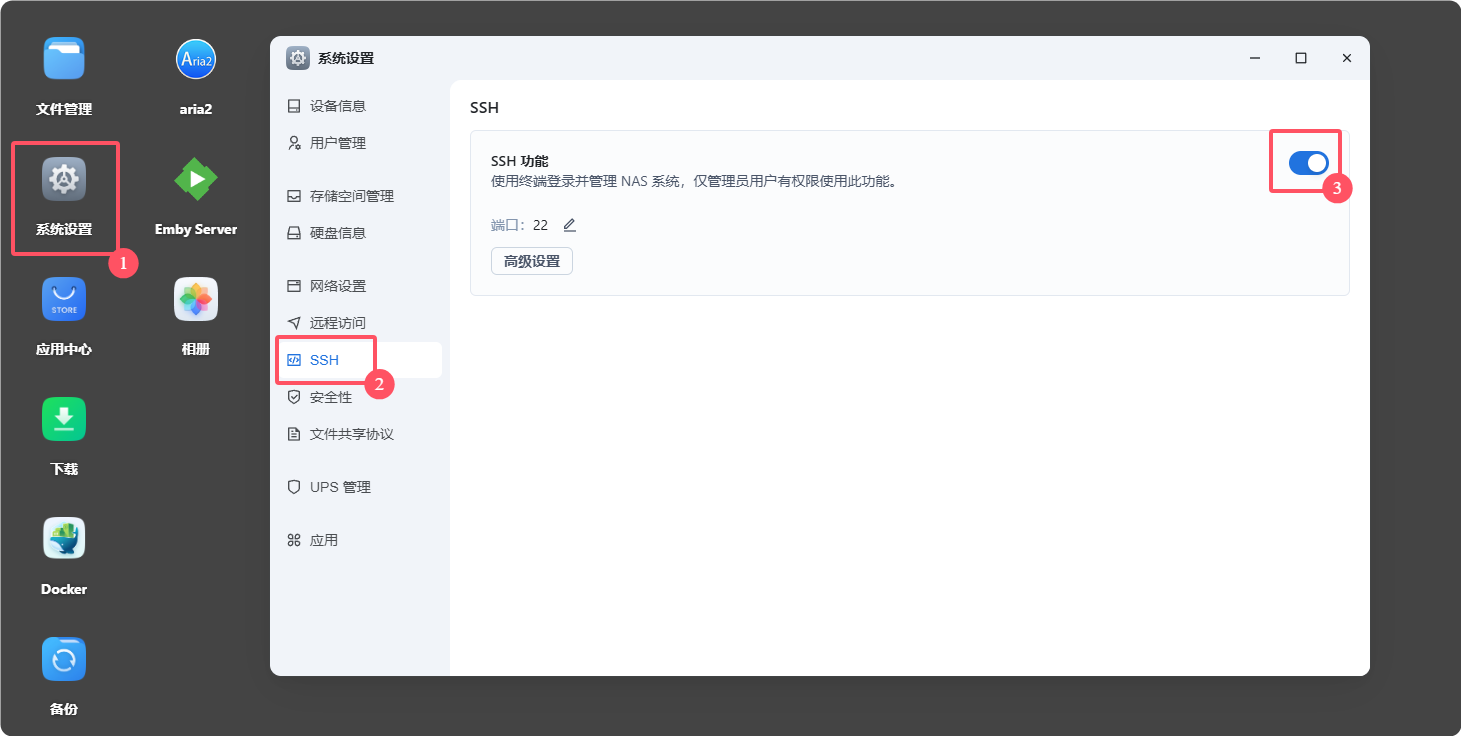
Connect from a local terminal:
ssh FNOS_USER@FNOS_LAN_ADDRESS
The password is not echoed while typing. Verify the host-key fingerprint before accepting a new key, especially if the address was used by another device previously.

The original guide switched the whole shell to root with sudo su. That is unnecessary for this container and increases the impact of a typo. Use the normal FNOS user and only add sudo to a command that actually requires it. Be aware that membership in the Docker group is effectively root-equivalent on the host.
3. Find the Real FNOS Paths and IDs
FNOS data paths often resemble:
/vol1/1000/USERNAME/but the pool number, user ID, and layout can differ. In File Manager, open the directory details and copy the original path:
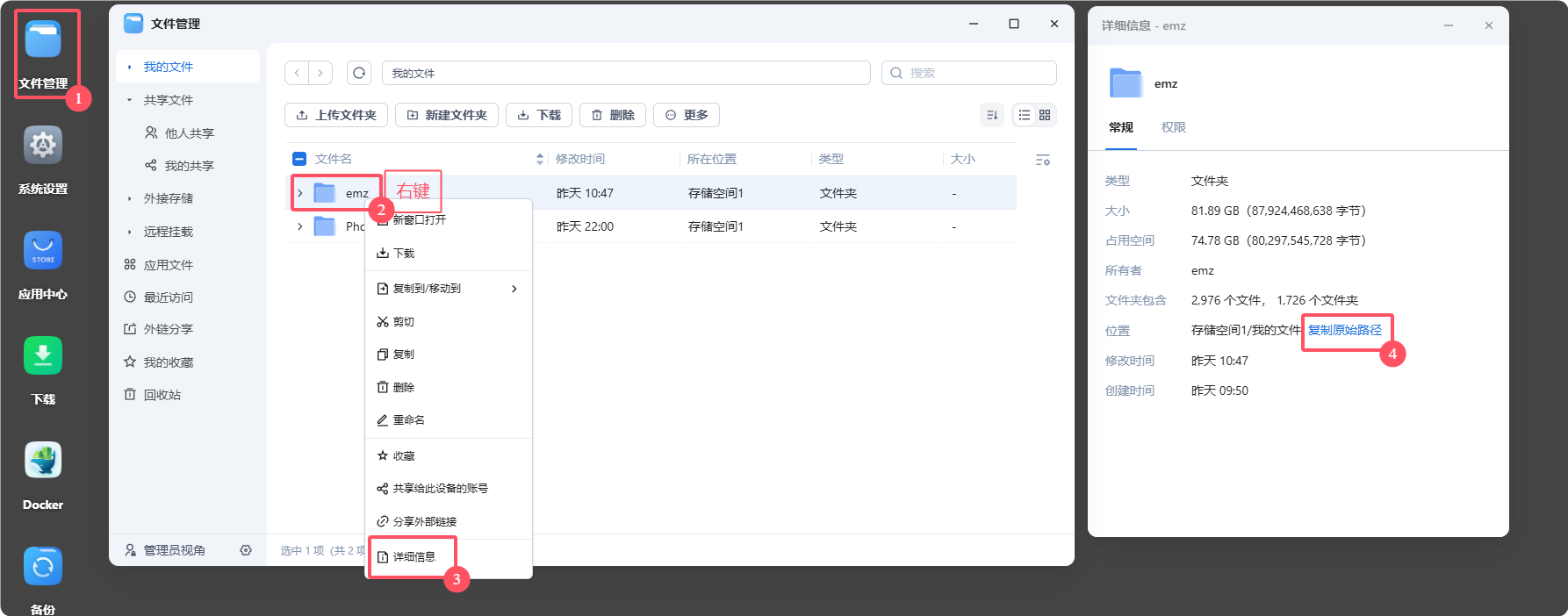
In the shell:
idRecord the numeric UID and GID. Do not assume both are 1000.
Set task-specific variables for the current shell, replacing the example paths:
ONEDRIVE_CONF_DIR='/vol1/1000/example/docker/onedrive/conf'
ONEDRIVE_DATA_DIR='/vol1/1000/example/backup-source'
ONEDRIVE_UID="$(id -u)"
ONEDRIVE_GID="$(id -g)"

mkdir -p "$ONEDRIVE_CONF_DIR" "$ONEDRIVE_DATA_DIR"
chmod 700 "$ONEDRIVE_CONF_DIR"
The configuration directory stores OAuth credentials and sync state. Back it up encrypted and do not expose it through SMB or a public share.
4. Decide Between Synchronization and Archive-Style Upload
Default two-way synchronization
The container's default monitor mode uploads local changes and downloads remote changes. Deletions may propagate. Use this only if OneDrive is intended to be another synchronized working copy.
Safer backup-oriented starting point
For a local directory that should remain the source of truth:
- enable upload-only behavior;
- prevent local deletions from deleting remote items; and
- mount the source directory read-only inside the container.
The upstream project exposes these as ONEDRIVE_UPLOADONLY=1, ONEDRIVE_NOREMOTEDELETE=1, and Docker's :ro mount option.
This provides better isolation but still is not immutable backup: an in-place file modification or encrypted replacement may upload as a new version. Confirm OneDrive retention and add local snapshots or another backup target.
5. Authorize the Client Interactively
The upstream Docker guide currently uses the driveone/onedrive image and recommends the edge tag for alignment with its current documentation and fixes. For a production deployment, test the chosen tag and pin a version or image digest so upgrades are deliberate.
Two-way sync first run
docker run -it --name onedrive \
  -v "$ONEDRIVE_CONF_DIR:/onedrive/conf" \
  -v "$ONEDRIVE_DATA_DIR:/onedrive/data" \
  -e "ONEDRIVE_UID=$ONEDRIVE_UID" \
  -e "ONEDRIVE_GID=$ONEDRIVE_GID" \
  driveone/onedrive:edge
Upload-only archive first run
docker run -it --name onedrive \
  -v "$ONEDRIVE_CONF_DIR:/onedrive/conf" \
  -v "$ONEDRIVE_DATA_DIR:/onedrive/data:ro" \
  -e "ONEDRIVE_UID=$ONEDRIVE_UID" \
  -e "ONEDRIVE_GID=$ONEDRIVE_GID" \
  -e ONEDRIVE_UPLOADONLY=1 \
  -e ONEDRIVE_NOREMOTEDELETE=1 \
  driveone/onedrive:edge
The container prints a Microsoft authorization URL:

Open it in a browser, sign in to the intended account, review the requested permissions, and complete authorization. The browser redirects to a blank page; copy the entire resulting URL back into the terminal prompt:
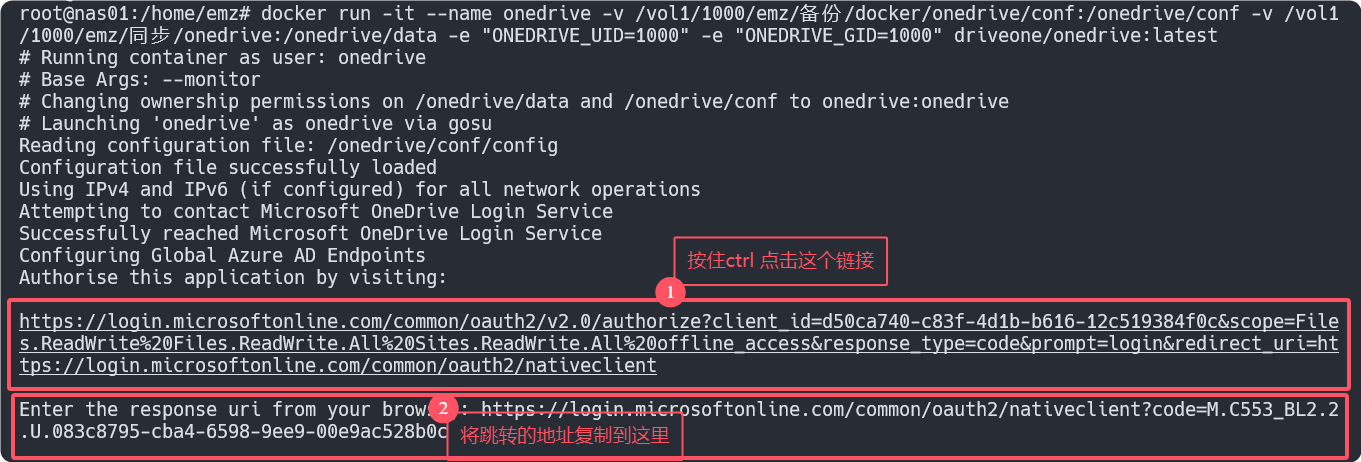
The client stores credentials and a state database in the configuration mount:

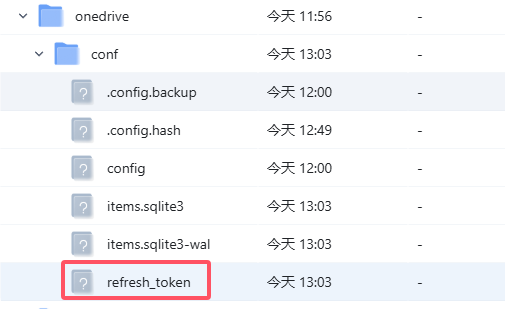
The original article referred to a refresh_token file and suggested deleting it after a password change. Current reauthorization should use the client's supported ONEDRIVE_REAUTH=1 flow or current upstream instructions, not manual token-file deletion as the first response.
Detach without stopping the interactive container by pressing Ctrl+P, then Ctrl+Q. Alternatively, stop it after authorization and recreate it with the background options below.
6. Run in the Background
Remove only the disposable container object; the bind-mounted configuration and data remain:
docker rm -f onedriveTwo-way monitor
docker run -d --name onedrive \
  --restart unless-stopped \
  -v "$ONEDRIVE_CONF_DIR:/onedrive/conf" \
  -v "$ONEDRIVE_DATA_DIR:/onedrive/data" \
  -e "ONEDRIVE_UID=$ONEDRIVE_UID" \
  -e "ONEDRIVE_GID=$ONEDRIVE_GID" \
  driveone/onedrive:edge
Upload-only archive
docker run -d --name onedrive \
  --restart unless-stopped \
  -v "$ONEDRIVE_CONF_DIR:/onedrive/conf" \
  -v "$ONEDRIVE_DATA_DIR:/onedrive/data:ro" \
  -e "ONEDRIVE_UID=$ONEDRIVE_UID" \
  -e "ONEDRIVE_GID=$ONEDRIVE_GID" \
  -e ONEDRIVE_UPLOADONLY=1 \
  -e ONEDRIVE_NOREMOTEDELETE=1 \
  driveone/onedrive:edge
unless-stopped avoids automatically restarting a container that an administrator intentionally stopped.
Confirm:
docker ps --filter name=onedrive
docker logs --tail 200 onedrive
The FNOS container interface should also show the service:

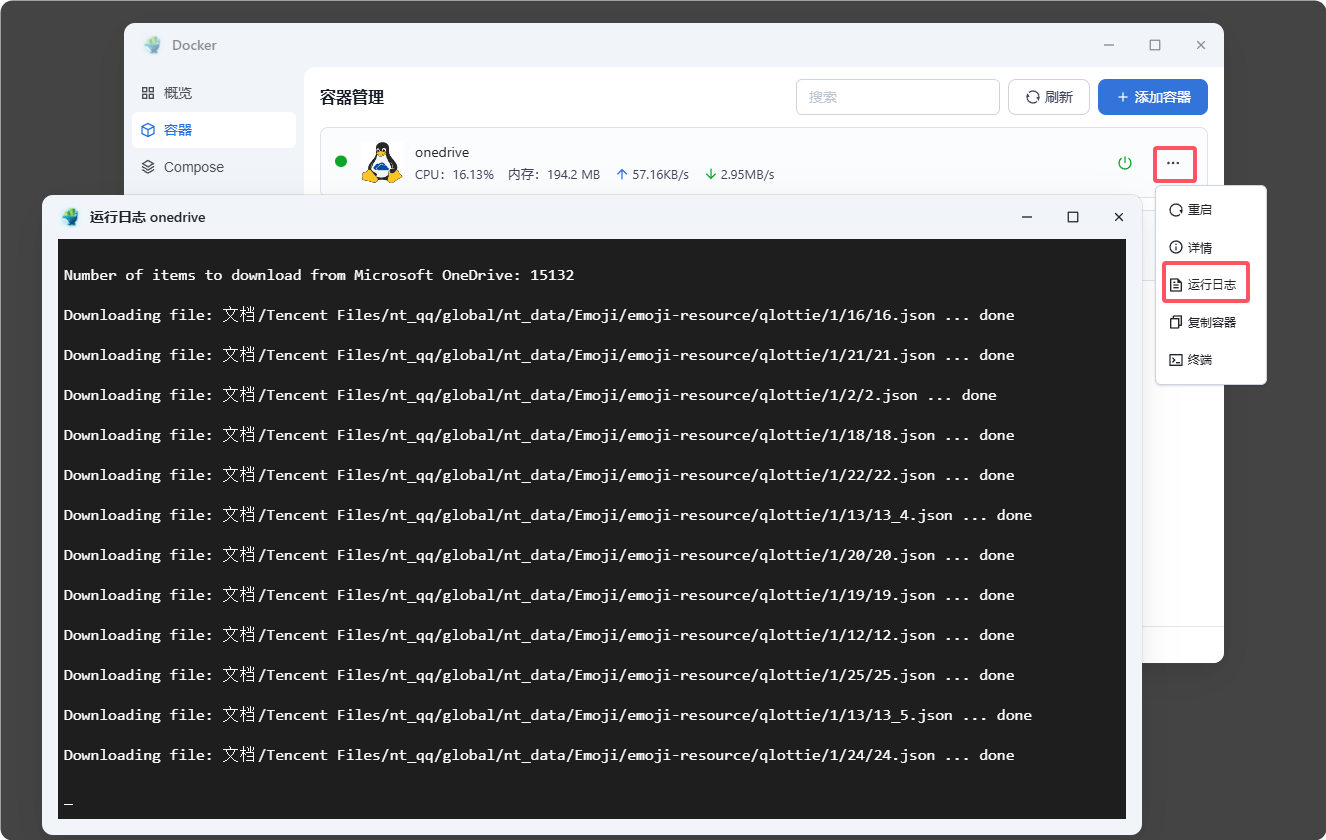
7. Configure Filters Carefully
Create or edit:
CONFIG_DIRECTORY/configThe container always supplies /onedrive/conf and /onedrive/data, so an internal sync_dir setting is overridden by its entrypoint and should not be added.
Example:
skip_dir = "~*|.~*"
skip_file = "*.tmp|~$*"
skip_dotfiles = "true"
Filter syntax and option names can change. Validate against the current application configuration reference. The upstream usage guide says changing filtering rules such as skip_dir, skip_file, or skip_dotfiles requires a controlled resynchronization.
Before changing production filters:
- back up the configuration directory;
- inspect current logs and sync status;
- test with
ONEDRIVE_DRYRUN=1in a disposable container; and - review exactly which local and remote files would be affected.
Do not automate resync at every startup. Upstream warns that it rebuilds state and can have deletion consequences if used without understanding the direction and source of truth.
8. Reauthorize
If the token is revoked, the account changes, or the logs request reauthorization:
docker rm -f onedrive

docker run -it --name onedrive \
  -v "$ONEDRIVE_CONF_DIR:/onedrive/conf" \
  -v "$ONEDRIVE_DATA_DIR:/onedrive/data:ro" \
  -e "ONEDRIVE_UID=$ONEDRIVE_UID" \
  -e "ONEDRIVE_GID=$ONEDRIVE_GID" \
  -e ONEDRIVE_UPLOADONLY=1 \
  -e ONEDRIVE_NOREMOTEDELETE=1 \
  -e ONEDRIVE_REAUTH=1 \
  driveone/onedrive:edge
Use the same mode and mount policy as the regular container. Review the current upstream Docker guide before reauthorization because environment variables and behavior may evolve.
9. Verify Backups by Restoring
Uploading without a tested restore is not a completed backup.
Create a small test file locally.
Confirm it appears in the expected OneDrive folder.
Record its hash:
sha256sum "$ONEDRIVE_DATA_DIR/restore-test.bin"Restore the file to a separate directory or device.
Compare its hash and metadata.
Test an older version and a deleted file using the retention features you expect to rely on.
Alert when the container stops, authentication fails, uploads are skipped, storage is full, or no successful sync has occurred within the expected window.
10. Maintain the Deployment
- Pin a tested image version or digest.
- Read release notes before upgrades.
- Back up the configuration volume securely.
- Keep the source mount read-only for upload-only backup mode.
- Retain local snapshots and an additional independent copy.
- Disable FNOS SSH when routine administration does not require it.
- Never expose the Docker socket or OAuth configuration directory to untrusted users.
Docker Option Reference
-it: interactive input plus a terminal, used for authorization.-d: detached background execution.--name: stable local container name.-v: host-to-container mount; add:rofor a read-only source.-e: container environment variable.--restart unless-stopped: restart after failure or reboot unless an administrator stopped it.