
Replace Ubuntu with Debian in WSL 2 Without Losing Your Backup
I wanted a smaller Debian environment in WSL 2, so these notes document a safe replacement workflow.
Important correction
Importing an Ubuntu export under a name such as Debian-Backup does not convert it to Debian. It creates another WSL distribution containing the same Ubuntu root filesystem. Install a clean Debian distribution and migrate only the files and configuration you need.
Run the following WSL commands in Windows PowerShell or Command Prompt, not inside the Linux shell. Microsoft's current WSL command reference documents the same export, install, default-distribution, and unregister operations.
1. Identify and stop the Ubuntu distribution
List every installed distribution, including stopped ones:
wsl --list --verboseThe exact name may be Ubuntu, Ubuntu-20.04, or another value. Substitute the name shown on your computer in every later command.
Close work running inside Ubuntu, then stop that distribution:
wsl --terminate Ubuntu-20.042. Export a complete backup
Choose an explicit backup path with enough free space:
wsl --export Ubuntu-20.04 C:\WSL-Backups\ubuntu-20.04-backup.tar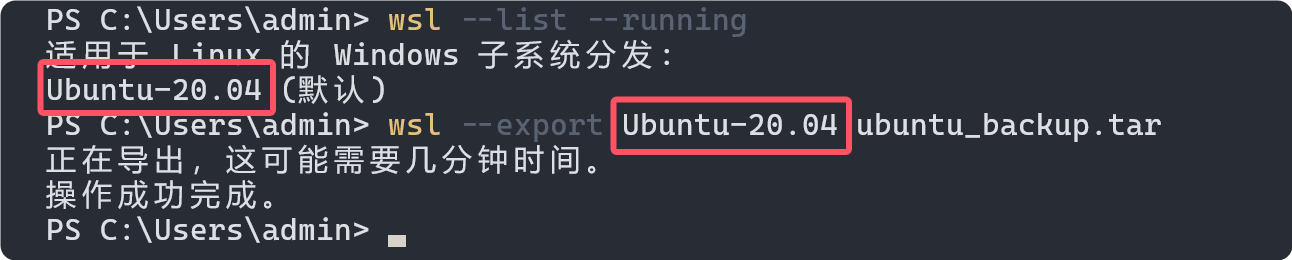
Confirm that the TAR file exists and has a plausible non-zero size. Keep it until Debian has been tested and any required data has been copied.
To validate the backup without touching the original distribution, you can import it under a temporary name:
wsl --import Ubuntu-Restore-Test C:\WSL\Ubuntu-Restore-Test C:\WSL-Backups\ubuntu-20.04-backup.tar --version 2
wsl -d Ubuntu-Restore-Test
After checking important files, leave the test shell and remove only the temporary test instance:
wsl --unregister Ubuntu-Restore-Test3. Install a clean Debian distribution
Check the currently offered distribution names:
wsl --list --onlineInstall Debian:
wsl --install -d Debian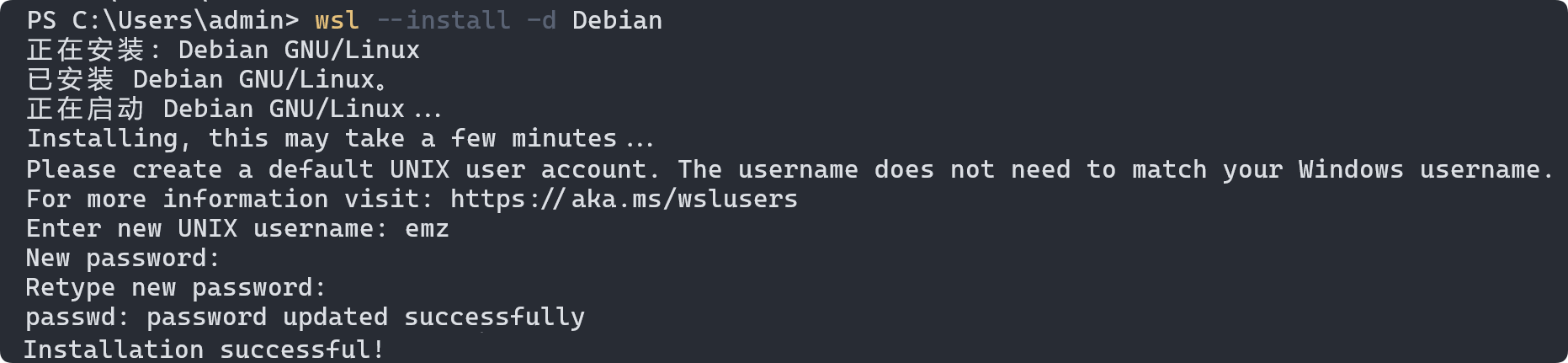
Launch Debian and create the requested Linux user and password:
wsl -d DebianKeep Ubuntu and Debian installed side by side during migration. WSL supports multiple distributions, so there is no need to delete the working environment first.
4. Migrate selected data
Copy projects, documents, SSH configuration, and dotfiles only after reviewing them. Linux distributions use different package names, versions, defaults, and system configuration; copying the entire Ubuntu root filesystem over Debian would defeat the purpose of a clean migration.
From Windows Explorer, both distributions are available under paths similar to:
\\wsl.localhost\Ubuntu-20.04\home\your-ubuntu-user
\\wsl.localhost\Debian\home\your-debian-user
For large development trees, an archive preserves Linux permissions more reliably than dragging files through a Windows filesystem. One option is to create an archive in Ubuntu:
tar --xattrs --acls -czf /mnt/c/WSL-Backups/home-projects.tar.gz \
  -C "$HOME" projects .ssh .gitconfig
Then extract it as the intended Debian user:
tar --xattrs --acls -xzf /mnt/c/WSL-Backups/home-projects.tar.gz -C "$HOME"Review .ssh permissions after extraction and reinstall packages from Debian's repositories rather than copying Ubuntu package databases or system binaries.
5. Verify Debian and make it the default
Test the projects, network access, shell configuration, credentials, and services you rely on. Then set Debian as the distribution used by a plain wsl command:
wsl --set-default Debian
wsl --list --verbose
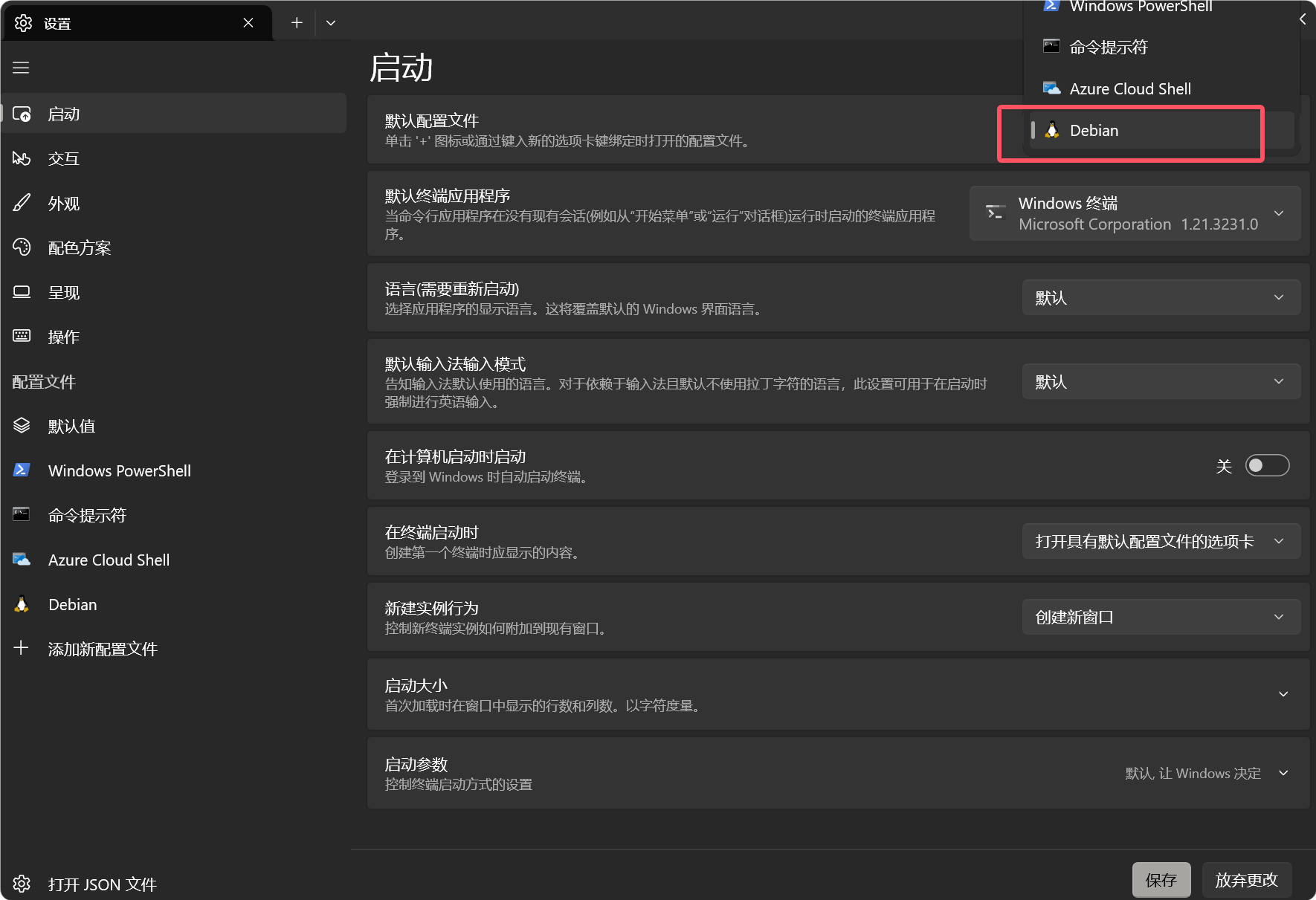
If you use Windows Terminal, select Debian as its default profile.
6. Unregister Ubuntu only after verification
wsl --unregister permanently removes the distribution's WSL filesystem, installed packages, settings, and local data.
When Debian has been verified and the export is safely retained:
wsl --unregister Ubuntu-20.04
Do not delete the exported backup until you have completed at least one normal work cycle in Debian and confirmed that nothing important is missing.