
GKD Download and Setup: Skip Android Startup Ads in 4 Steps
Download GKD for Android
Official stable v1.12.1 · No root needed · Android only
The button downloads the APK directly. If it fails, choose another method on the official download page, or use Google Play.
Opening an app should not mean racing to tap Skip. Let GKD handle that tap. With compatible rules, it can skip startup ads, dismiss some promotional popups, and handle repetitive tasks such as expanding comments.
One thing matters before you start: installation alone is not enough. Enable accessibility and add rules too. Follow the four steps below; no programming or advanced working mode is required.
1. Install the downloaded APK
Open gkd-v1.12.1.apk in your phone browser's Downloads, install it, and launch GKD.
If Android blocks installation from this source, follow its prompt to allow installation for the browser or file manager you used, then return to the installer. You can turn that source permission off afterward.
When GKD's Home screen opens, continue below. For other versions, choose an .apk under Assets on the official release page. The Source code archives are not installers.
2. Enable accessibility
- In GKD, open Home → Service status (服务状态). Retain Basic (基础) mode and tap Manual authorization (手动授权).
- Android opens Accessibility settings. Find GKD in the installed/downloaded services list, enable it, and confirm the system prompt.
- Return to GKD. Accessibility is running (无障碍正在运行) means this step is complete.
Accessibility lets GKD read the interface and perform taps. Grant it to the application from the official sources above. Root, Shizuku, and command authorization are unnecessary for this route.
Android shows Restricted settings and blocks the switch
Long-press GKD's launcher icon → App info → top-right menu or advanced settings → Allow restricted settings. Confirm, then retry accessibility. The location varies by phone; consult the official system-specific guidance if the option is absent.
If Android's service switch is on but GKD reports a fault, turn that service off and on. For a persistent problem, see the official troubleshooting guide.
3. Add rules: copy the link into Subscriptions
Do not skip this step: GKD currently bundles no default rules. A subscription here is a rule update URL, not a paid membership. This guide uses the third-party community project aoguai's GKD subscription. Start with one subscription.
Copy this entire line. On a phone, you can also long-press this rule link and choose Copy link address.
https://raw.githubusercontent.com/aoguai/subscription/custom/dist/aoguai_gkd.json5Then, in GKD:
- Tap Subscriptions (订阅) at the bottom, then the + at the bottom right.
- Paste the link, tap Confirm (确定), and wait for the import.
- When 奥怪的GKD订阅 appears with its switch on, you are ready to continue.
This subscription enables startup-related rules by default. Keep the defaults initially; you do not need every category switched on.
Where is the add button? See the subscription screen
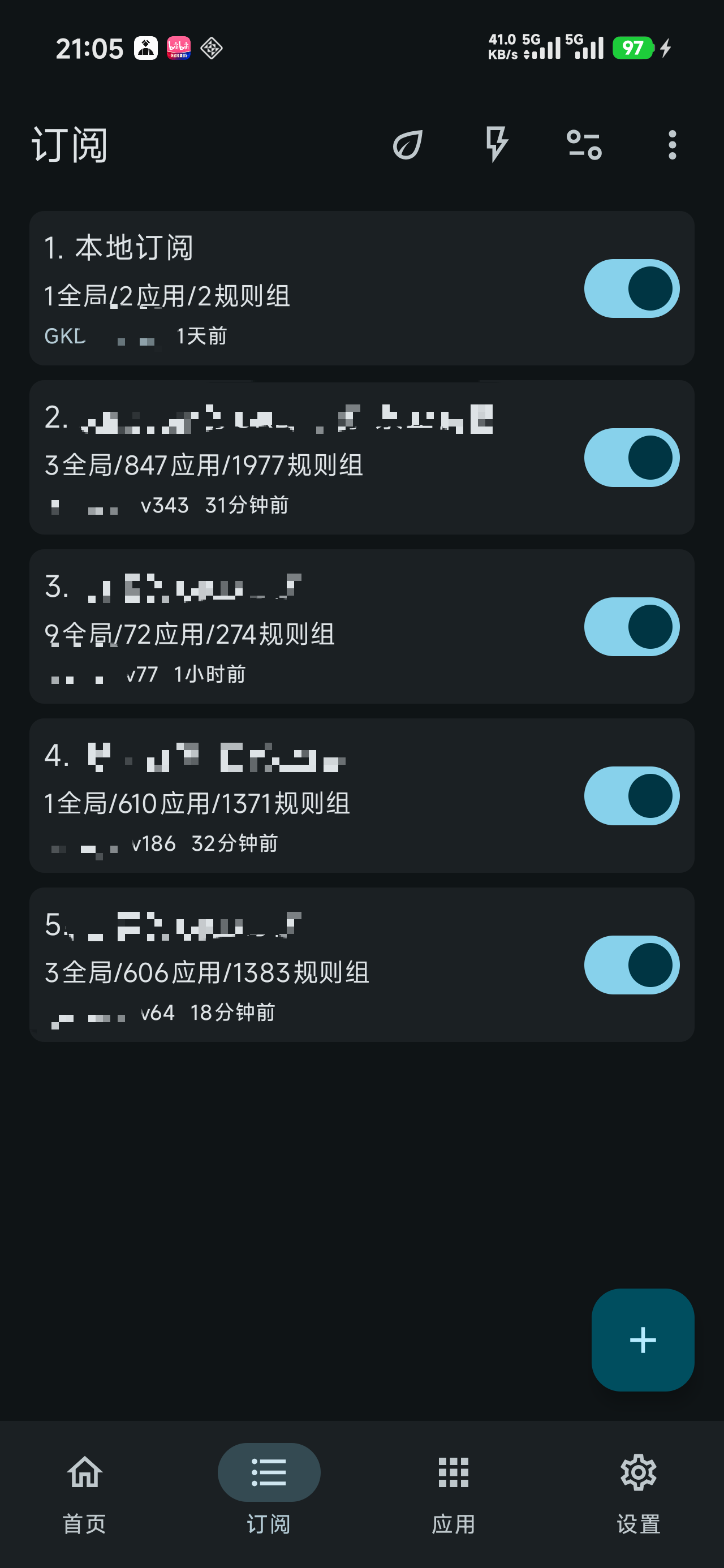
Official example: names, versions, and counts are illustrative. Add only one subscription for this guide.
The import failed: try this alternative URL
Long-press and copy the alternative rule link, or copy the line below, then retry:
https://cdn.jsdelivr.net/gh/aoguai/subscription@custom/dist/aoguai_gkd.json5Both addresses point to the same rule set supplied by its maintainer. Choose one. Check for a complete URL without extra punctuation. A GitHub repository homepage is not a rule-file URL.
4. Try an app with a startup ad
Check that the lightning icon at the top of Subscriptions (Rule matching / 规则匹配) is enabled, along with the imported subscription.
Choose an app where you normally see a startup ad with a Skip button:
- Remove that target app from recent tasks, then launch it again. Leave GKD running in the background.
- When an ad appears, do not tap immediately. Observe whether Skip is tapped automatically.
- Return to GKD Home → Trigger history (触发记录) and find the corresponding app action.
The intended button was handled correctly and the matching action appears in history: you can start using it. If no ad appears, wait for a real ad scene. An ad timing out on its own does not prove success.
GKD does not make every ad disappear. An ad may appear before it is skipped; without a matching button or rule, you still act manually. Pause other auto-clicking tools during this first check so you can identify what acted.
Start using it; open these only if needed
Setup is complete, but ads are not skipped
Check accessibility running → Rule matching on → subscription on → a Skip button actually present.
If necessary, open Subscriptions → 奥怪的GKD订阅. Check Startup ads (开屏广告) under Rule categories, then the startup group under Global rules. These are separate controls.
For a problem limited to one app, check its compatible rules and whether it is in the App whitelist (应用白名单). GKD's whitelist exempts apps from automation. Interface redesigns may need updated rules; pull down on the Subscriptions page to check for updates.
It works at first, then stops
Check GKD's Home service status. Reauthorize if accessibility stopped or faulted.
Adjust GKD's own background settings as available: lock its recent-task card, allow auto-start/background activity, and set its battery policy to unrestricted. Enable Home's Persistent notification (常驻通知) if needed.
Use the phone normally, then retest the previously working app. Check the service after a phone restart too. See the official background guidance for system-specific details.
It clicked the wrong thing, or I want to pause it
Turn off Rule matching on the Subscriptions page first to pause actions.
To keep other features, open Home → Trigger history, locate the unwanted action, tap View rule (查看规则), and disable that group before restoring the master switch. Global rules also offer Disable in this app (在此应用禁用).
To stop accessibility access completely, disable GKD in Android Accessibility settings.
GKD or Li Tiaotiao?
If Li Tiaotiao already skips startup ads reliably for you, keep choosing according to your needs. Try GKD if you want app-specific controls and a history that helps explain unwanted taps.
| What matters to you | GKD | Li Tiaotiao |
|---|---|---|
| First setup | Install, authorize, and add rules | Fewer steps for basic use in the older version |
| Extra features | Subscribe to rules; control apps and rule groups | Import community rules; capabilities vary by version |
| Unwanted taps | Locate the rule through trigger history | Inspect and adjust rules using community guidance |
This comparison refers to the commonly preserved Paida Xing 2.2 version of Li Tiaotiao. Its original developer announced an indefinite update pause in 2023, documented in this historical report. Community rule updates do not establish a restart of official releases. The community documentation notes that a new rule-file import replaces the previous one. This is a workflow comparison, not a same-device speed or battery test.
Add another useful feature when you are ready
For a supported popup or another task, open Subscriptions → 奥怪的GKD订阅 → App rules (应用规则) → target app. Read the description and enable only the needed group. The supported-rule list shows available features.
Example: expand more comments in Bilibili
- Search for 哔哩哔哩 under App rules and open it.
- Enable 功能类-自动点击评论区的[展开更多评论].
- Open a Bilibili video's comments. Observe a location that actually shows 展开更多评论, then confirm the action in GKD's trigger history.
Turn that group off to stop this behavior. A missing button or redesigned screen may prevent matching; leave the overall Functional category unchanged.
Keep payment, deletion, and account-authorization decisions manual. Start with startup rules, then add one or two useful tasks after checking the results.
Battery, privacy, and sources
Battery use depends on rules, interface details, and usage; see the official explanation. Start with one subscription and observe your own phone.
The developer's privacy policy states that interface data and debug screenshots are processed locally; subscriptions and updates may use the network. This is the developer's statement. Choose trusted app/rule sources and remove private information from troubleshooting screenshots.
Stable downloads and the rule file were checked on October 1, 2026. Instructions follow official documentation and the v1.12.1 interface; they have not been tested across physical Android devices. Follow the official site for later versions.