
Connect Android TV, a TV Box, or a Tablet to an Emby Server
Emby organizes media stored on an Emby Server and makes it available through clients for Android TV, Android boxes, tablets, phones, browsers, and other supported devices. This guide shows the manual server-connection flow on Android.
Install an Emby client
Use Emby's official download page or the verified Google Play or Amazon Appstore listing for the device. Emby's current documentation also lists an official APK option for Android Mobile.
The original Chinese article linked several versioned APK files from third-party domains:
Emby Android TV 2.1.16gEmby Android TV 2.0.78zEmby Android TV 2.0.33g- a separate Android phone and tablet download page
Those files and domains have not been independently verified by this site. Versions age, modified APKs can contain unwanted code, and sideloading bypasses some store protections. They are therefore not reproduced as recommended download buttons in the English guide. If an old television needs a legacy build, verify the publisher, signature, checksum, licensing terms, and malware-scan results before installation.
Connect manually on Android TV
In many home networks, an official Emby app discovers the local server automatically. When it does not, use the server administrator's authorized address.
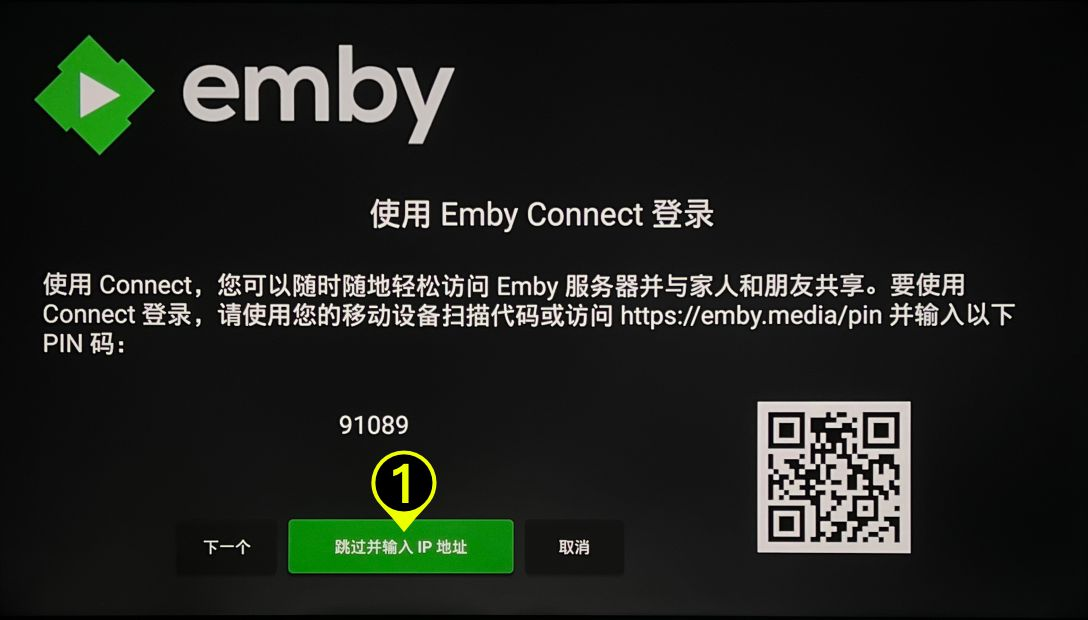
Choose Skip and enter IP address or the equivalent manual-connection option.
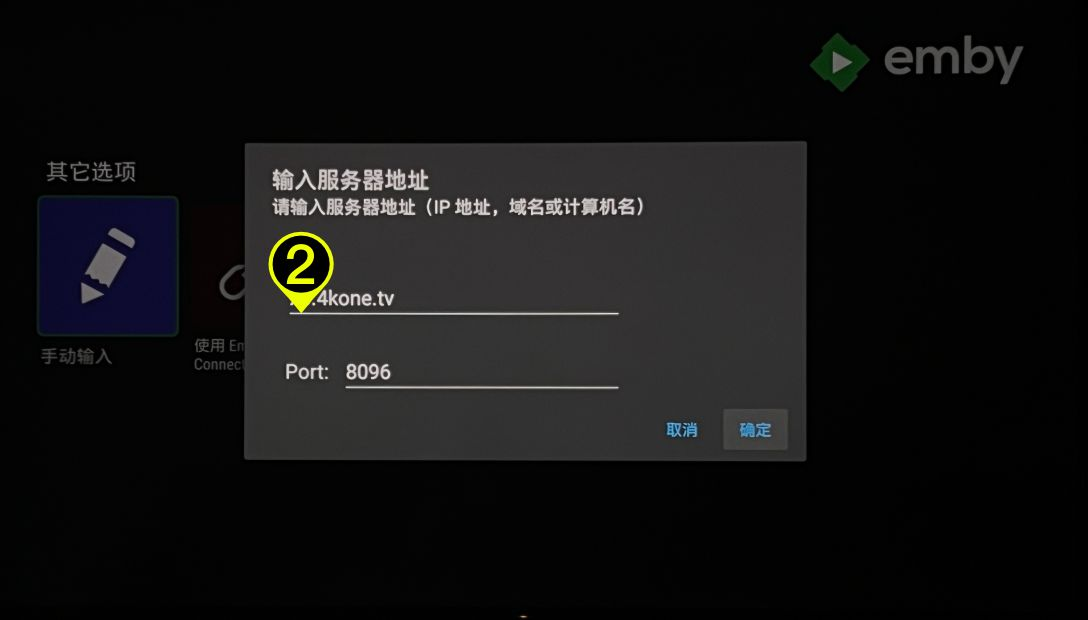
Enter the hostname or IP address supplied by the Emby server administrator, along with the actual port configured for that server.
- A conventional HTTPS service may use port
443. - A conventional HTTP service may use port
80. - A default local Emby Server commonly uses
8096for HTTP, but administrators can change it.
Do not assume a port solely from the protocol; use the address shown in the server dashboard or invitation. Prefer HTTPS for access over an untrusted network.
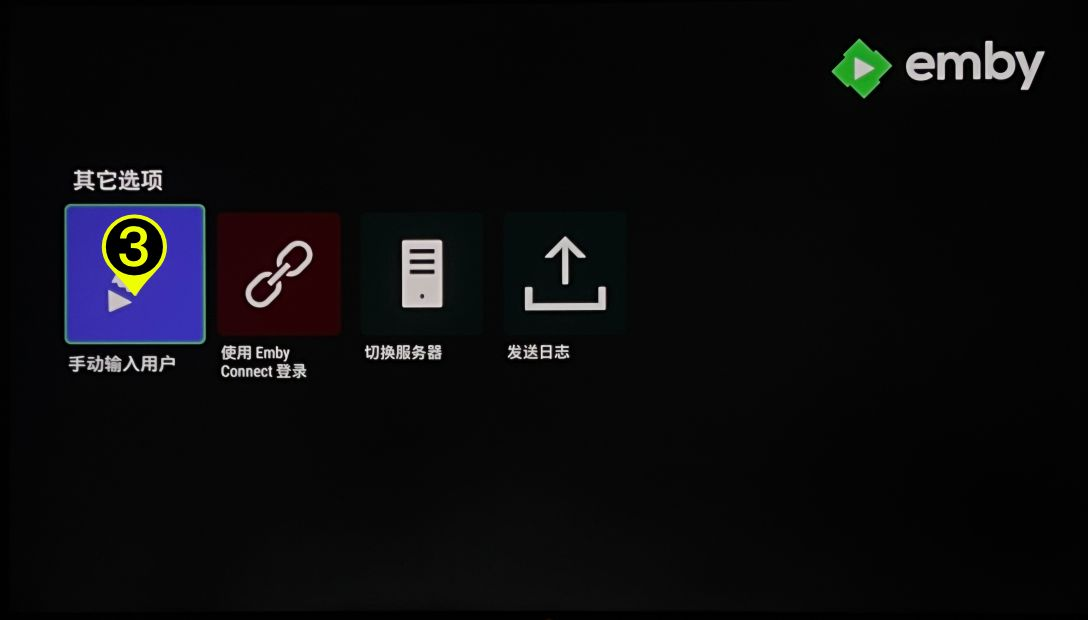
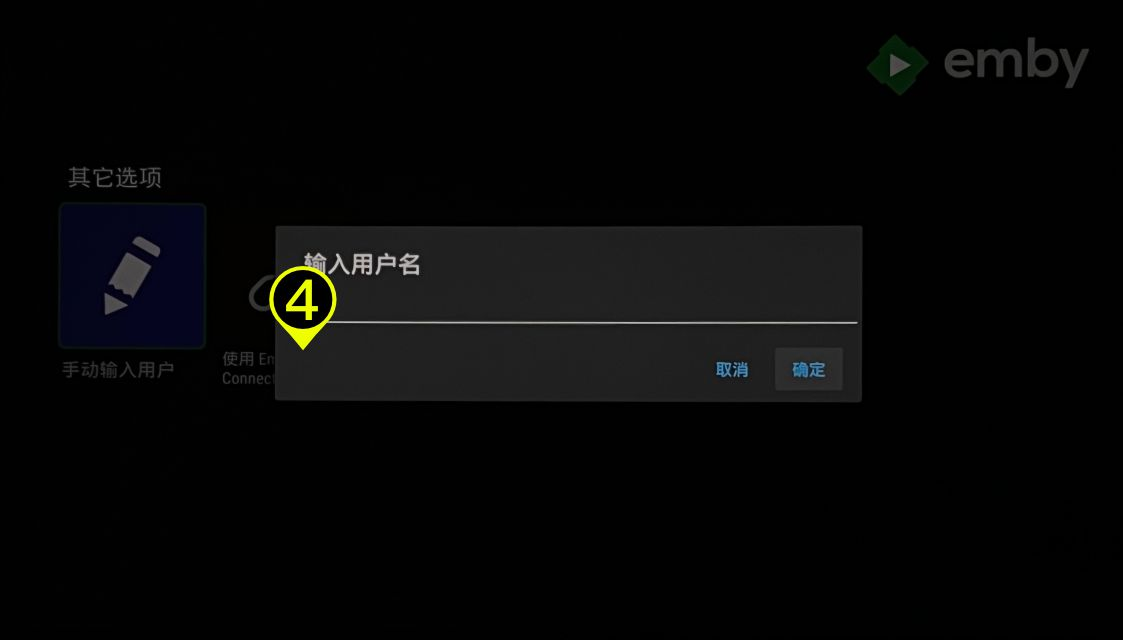
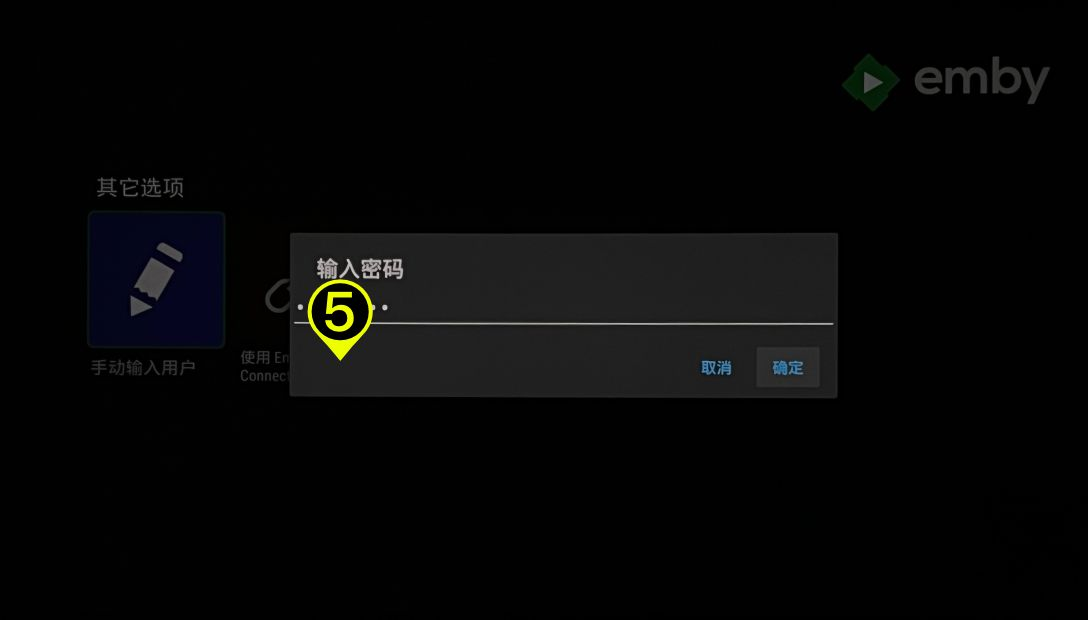
Choose the manual-user option and enter the Emby username and password issued for that server.
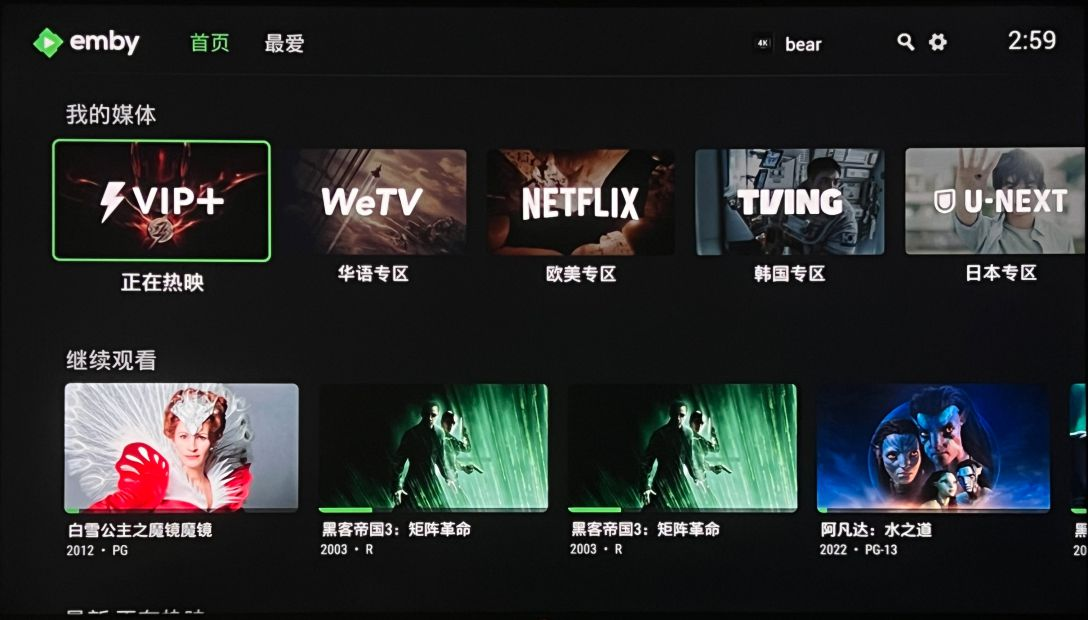
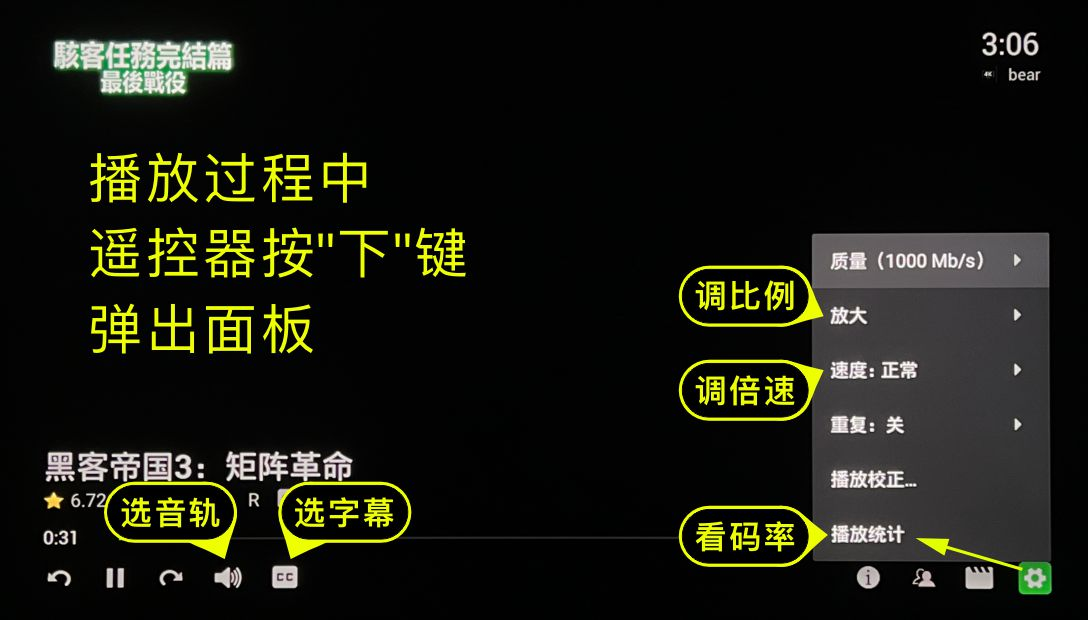
After authentication, the libraries granted to that user should appear in the Android TV client.
When the connection fails
Check the following:
- The Emby Server is running and the account is still authorized.
- The hostname, protocol, and port exactly match the administrator's settings.
- A local connection uses the server's LAN address; a remote connection uses its configured remote address.
- HTTPS certificates are valid for the hostname.
- The router, firewall, and server allow the intended connection.
- The client version still supports the device's Android version.
Emby's official client-connectivity documentation explains automatic discovery, manual server entry, LAN addresses, and remote-access troubleshooting.
Access to an Emby server
The client application does not include a media library by itself. You need your own Emby Server or an invitation from an administrator who has the rights to share the material.
The source article states that a Haoya Cloud plan included access to an Emby library at the time of its review.
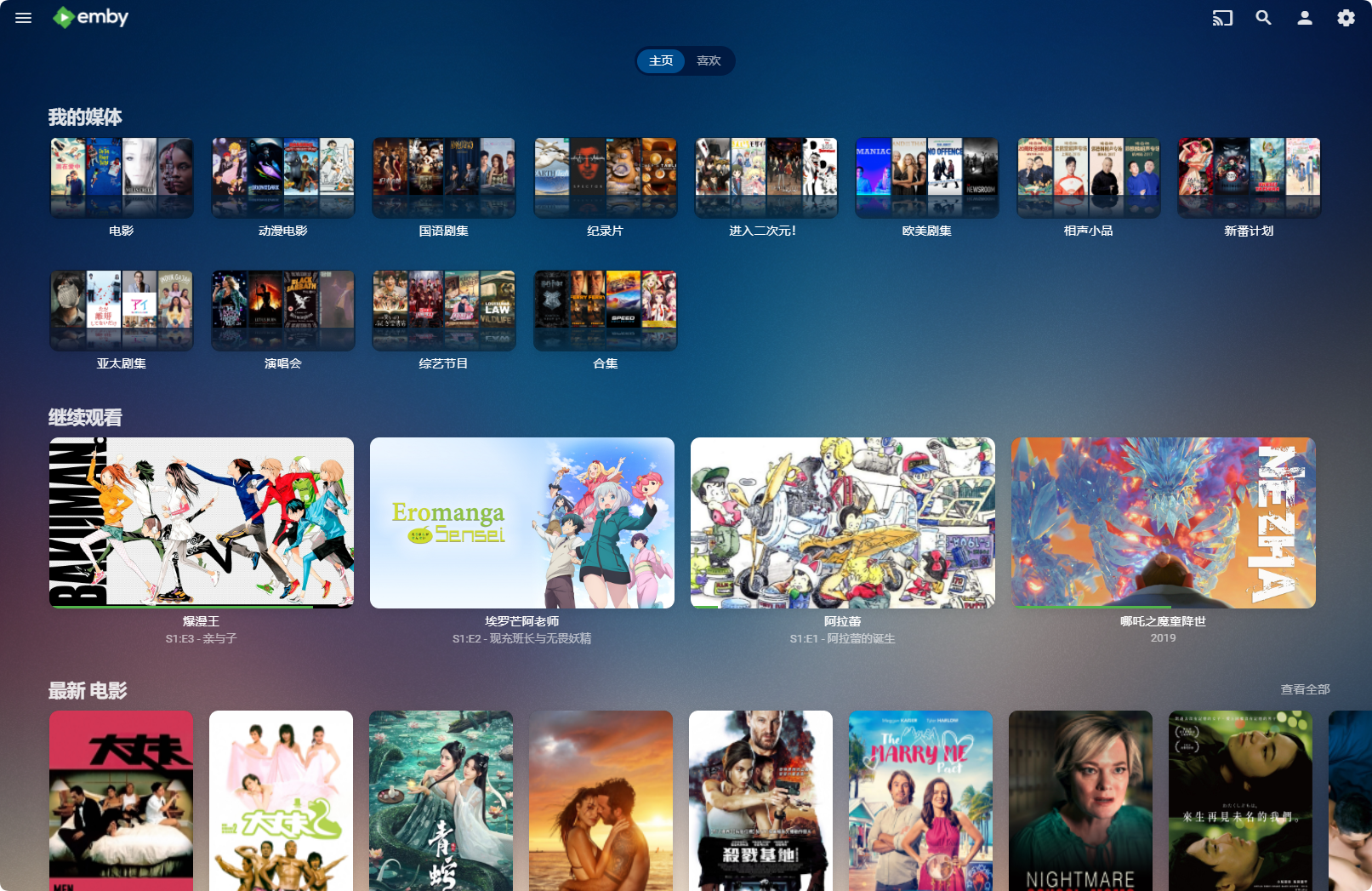
Treat that as a provider-supplied benefit recorded at the review date, not a permanent entitlement. Confirm current eligibility, library availability, account limits, licensing, and renewal terms with the provider before paying.