
Audit Publicly Exposed Ollama and DeepSeek Endpoints Safely
Search engines such as FOFA and Shodan can reveal Ollama servers that have been exposed to the public internet. This page explains how to use that information for a defensive audit of systems you own or are explicitly authorized to test.
Ollama is a runtime for running and serving models; it is not itself a language model. Its API can serve DeepSeek and many other compatible models. According to the official Ollama FAQ, Ollama binds to 127.0.0.1:11434 by default. A publicly reachable instance therefore normally reflects an intentional configuration change, a container port mapping, a reverse proxy, or another network-exposure decision.
Authorization required
An endpoint being visible in a search engine does not grant permission to use its compute capacity, inspect its models, or submit prompts. Do not connect to third-party instances. Restrict all checks in this guide to assets you own or have written authorization to assess.
1. Search FOFA for Your Own Ollama Assets
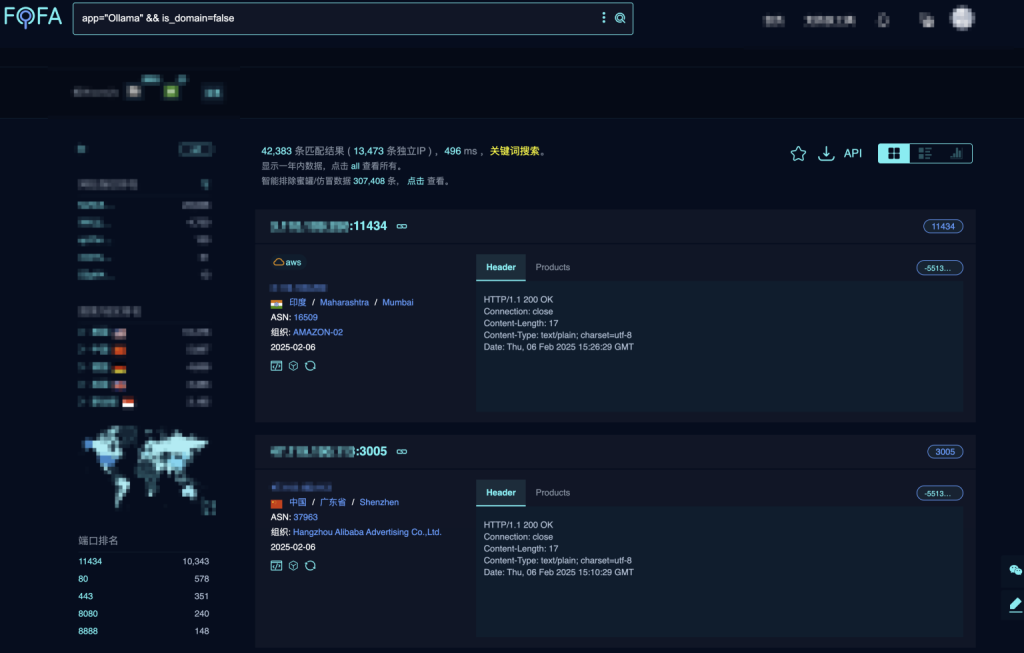
FOFA indexes internet-facing devices and services. A query historically used to identify likely Ollama services is:
app="Ollama" && is_domain=falseapp="Ollama"filters for fingerprints FOFA associates with Ollama.is_domain=falsefocuses on results represented directly by an IP address.
Treat the result as a lead, not proof. Search-engine fingerprints can be stale or wrong. Filter the results to IP ranges, hostnames, cloud accounts, or certificates that belong to your organization before doing anything further.
2. Search Shodan for Your Own Assets
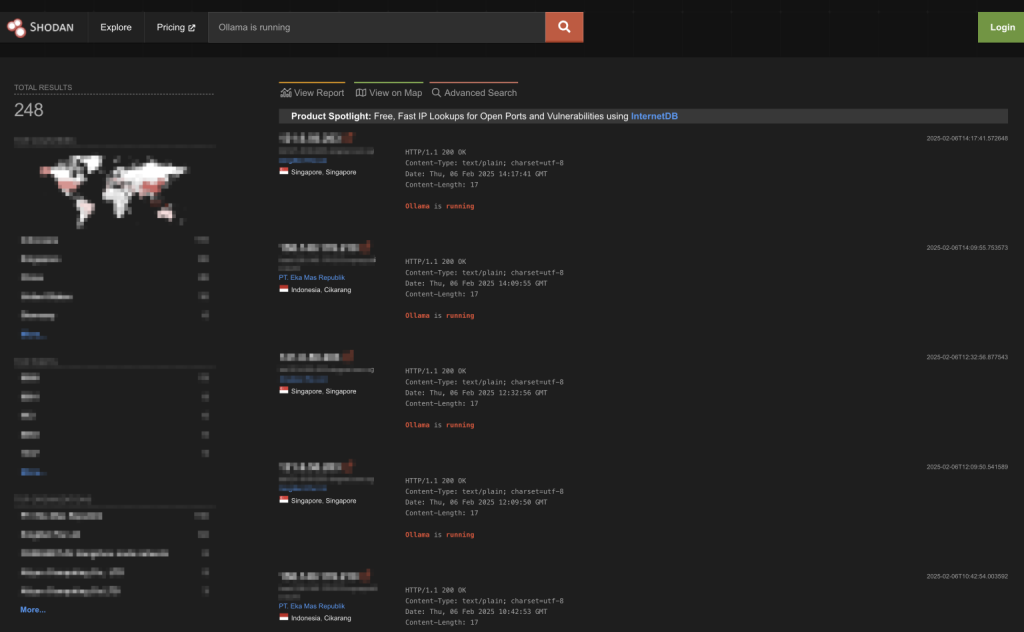
Shodan also indexes banners and service metadata. The phrase used in the original walkthrough was:
Ollama is runningLimit the search to your organization's verified network ranges. Record the observation time, address, port, and Shodan “last seen” time. Do not assume a cached search result means the endpoint is still reachable.
3. Validate an Authorized Endpoint
For a server you administer, first verify the configuration from the host itself:
- Check the
OLLAMA_HOSTenvironment variable and the service definition. - Review container port mappings, cloud firewall rules, router forwarding, reverse proxies, and tunnels.
- Confirm whether port
11434is reachable from an external network you control. - Review logs for unexpected source addresses or usage.
Avoid submitting test prompts containing private data. A minimal health or version check against your own endpoint is usually enough to confirm exposure. Search-engine results should not be used as a pool of “free” model servers.
4. Connect Chatbox Only to a Server You Control
If remote use is intentional:
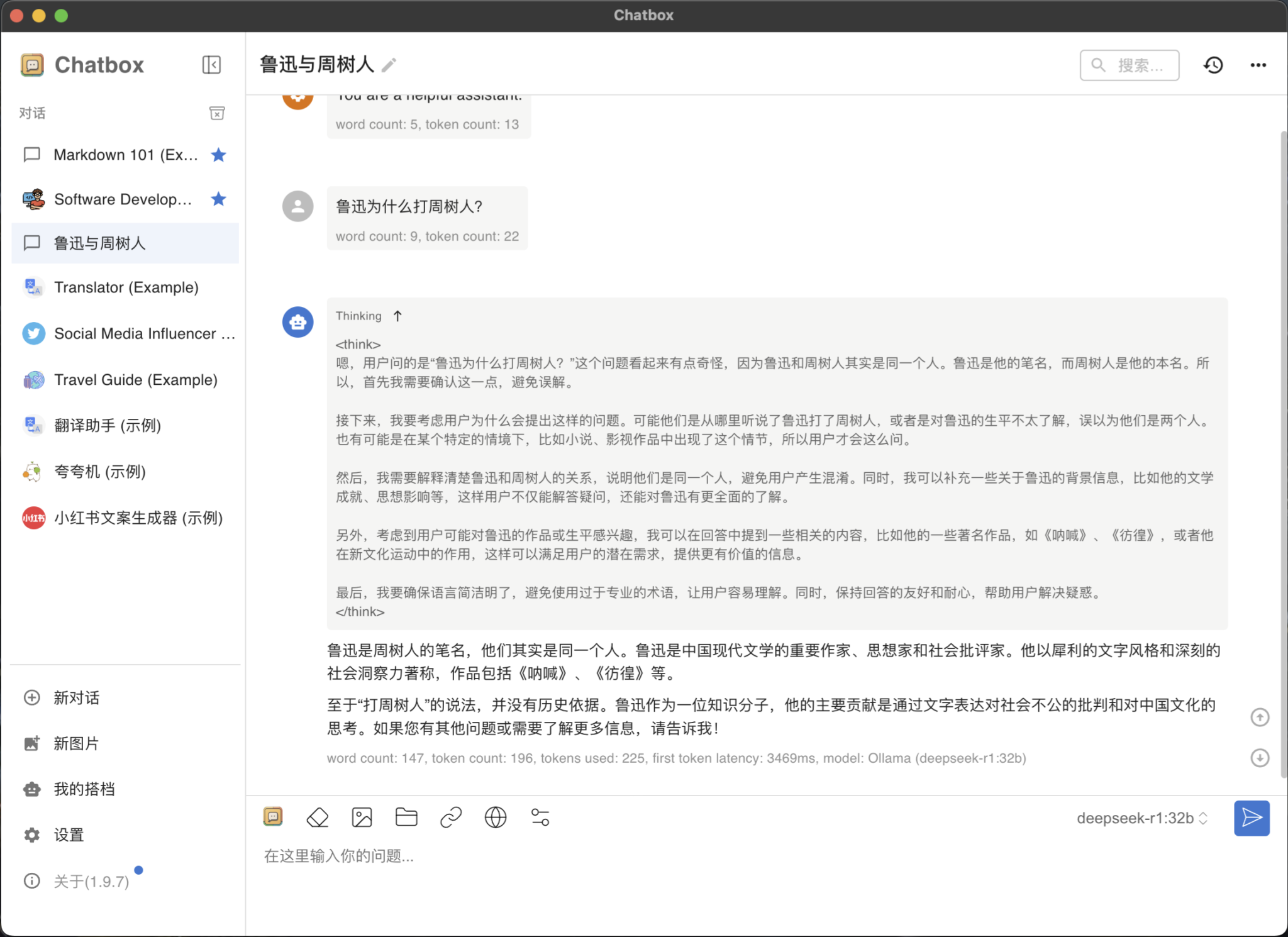
- Install Chatbox AI.
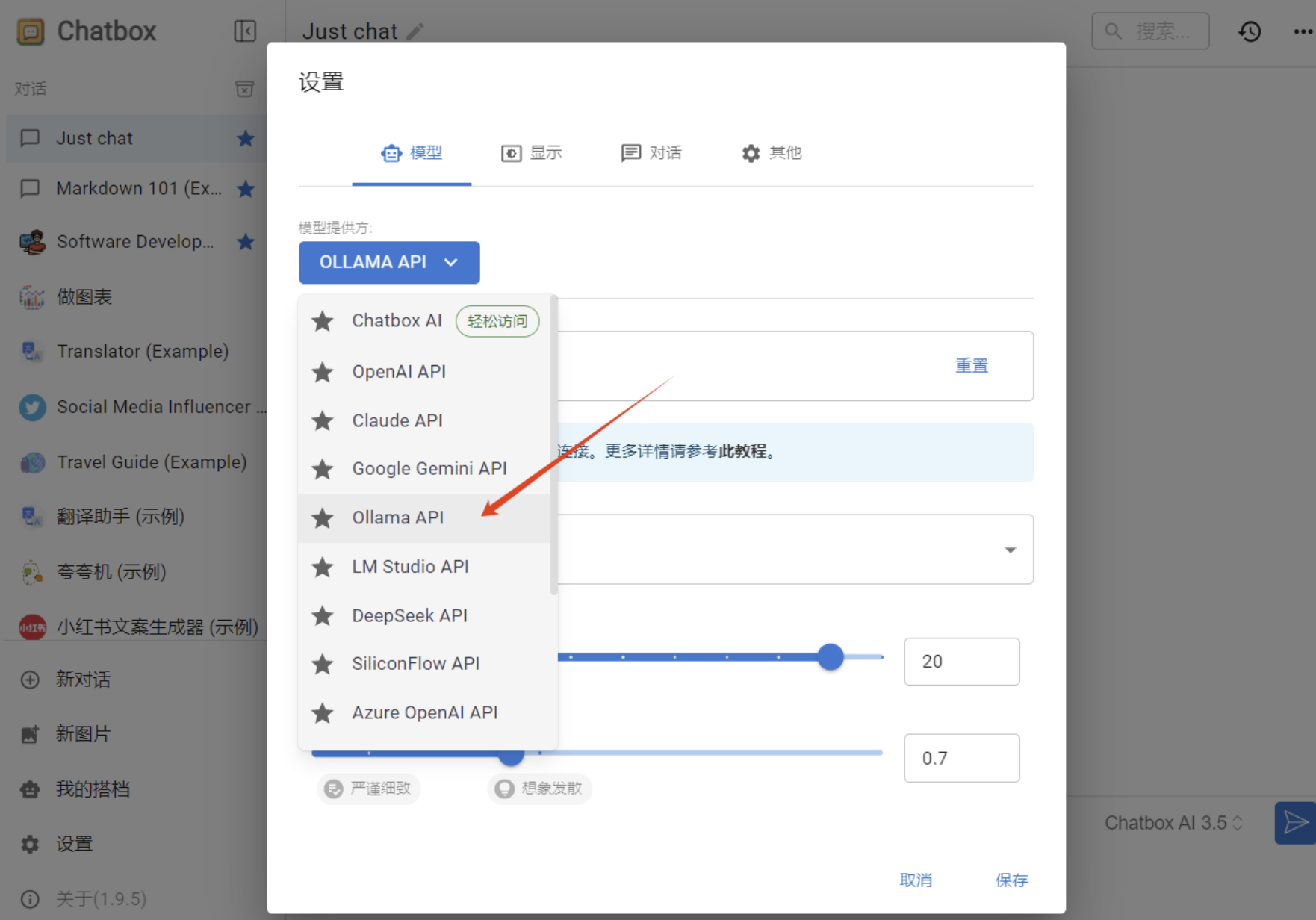
- Open its settings and select Ollama as the model provider.
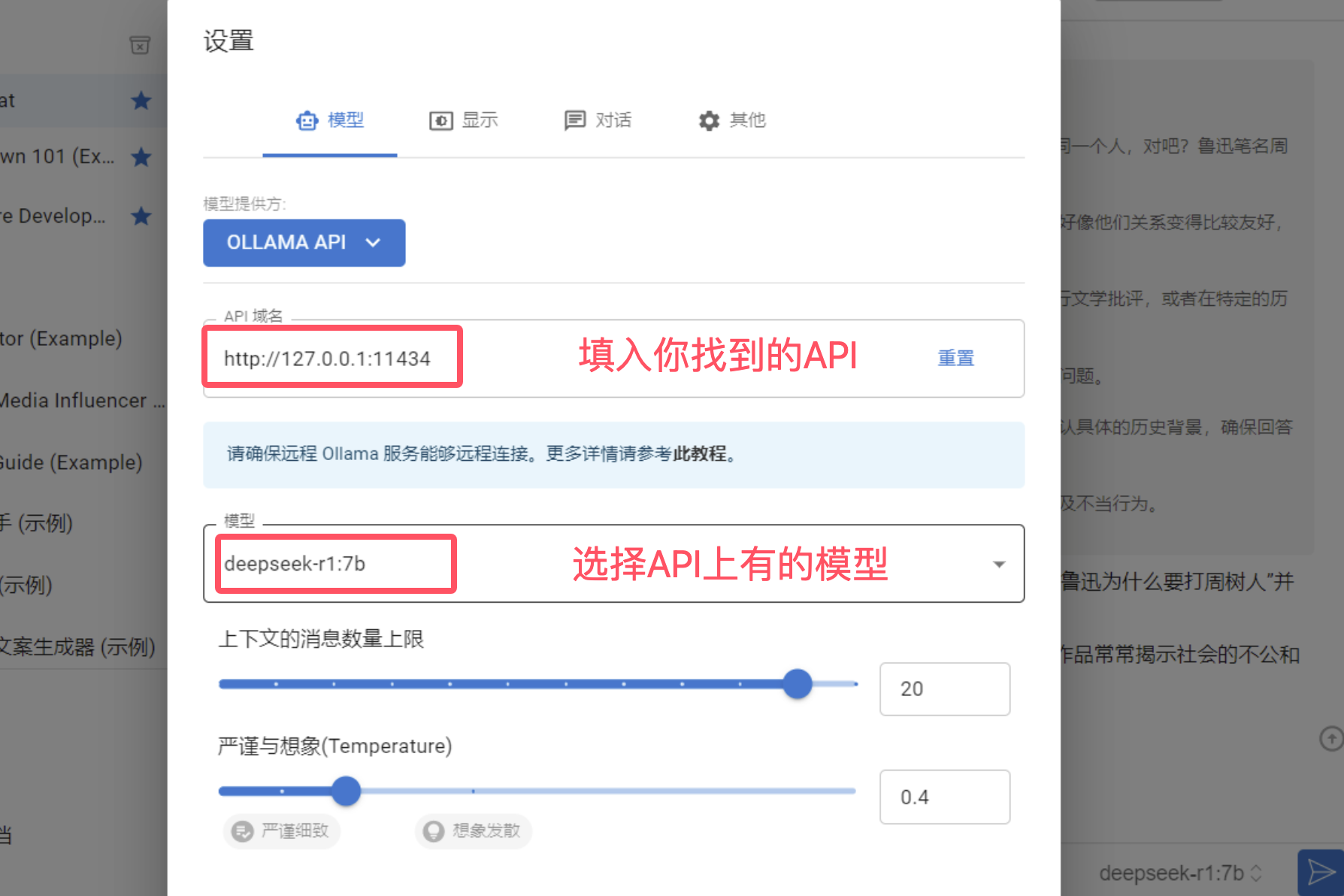
- Enter the URL of your authorized Ollama gateway, not an address copied from a public search result.
- Select a model that you installed and are permitted to use.
- Save the configuration and run a non-sensitive test.
5. Secure Ollama Before Remote Use
- Keep the default loopback binding when remote access is unnecessary. The official default is
127.0.0.1:11434. - Do not publish the raw API directly to the internet. Put it behind an authenticated gateway or VPN with TLS and access controls.
- Restrict inbound traffic. Allow only the required source networks or identities.
- Protect prompt data. Treat requests and responses as potentially sensitive.
- Apply resource controls. Rate limits, quotas, and bounded queues help prevent accidental or abusive GPU and memory consumption.
- Monitor and update. Review access logs, alerts, dependencies, and Ollama releases.
The Ollama FAQ documents network binding and reverse-proxy options, but those examples are building blocks rather than a complete internet-facing security architecture.
Summary
FOFA and Shodan are useful for discovering accidental exposure in infrastructure you are responsible for. They are not authorization mechanisms and do not turn someone else's Ollama endpoint into a free public AI service. For normal use, run DeepSeek locally or use an explicitly authorized hosted service, then expose it only through a protected access layer.