
Read Plain-Text Books in Vim with a Quick-Exit Key
This lighthearted guide shows how to read a plain-text book in Vim, move through it with a single key, save the last position, and exit quickly.
Use responsibly
Follow workplace policy and do not let personal reading interfere with your duties. Use only text you are legally permitted to download and read. The author cannot protect you from an unhappy manager.
1. Install Vim on Windows
Download Vim from the official Windows download page. Installer names and version numbers change, so choose the current signed Windows installer rather than looking for an exact gvimXX.exe filename from an old screenshot.

If Windows shows a reputation warning, verify the download source and publisher before proceeding. Do not bypass a warning merely because a tutorial says the file is safe.
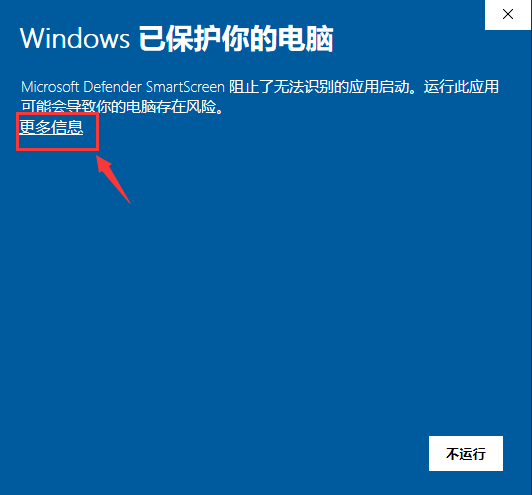
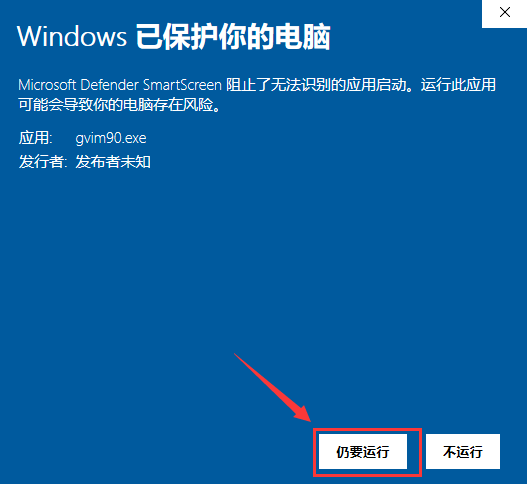
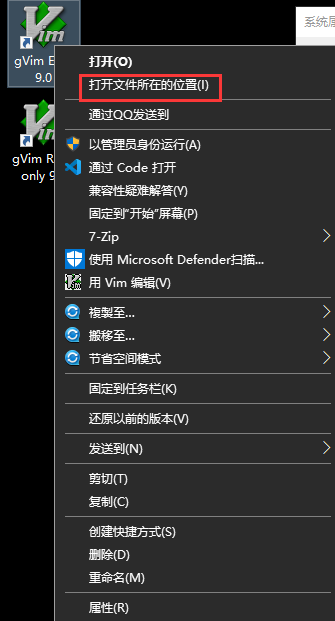
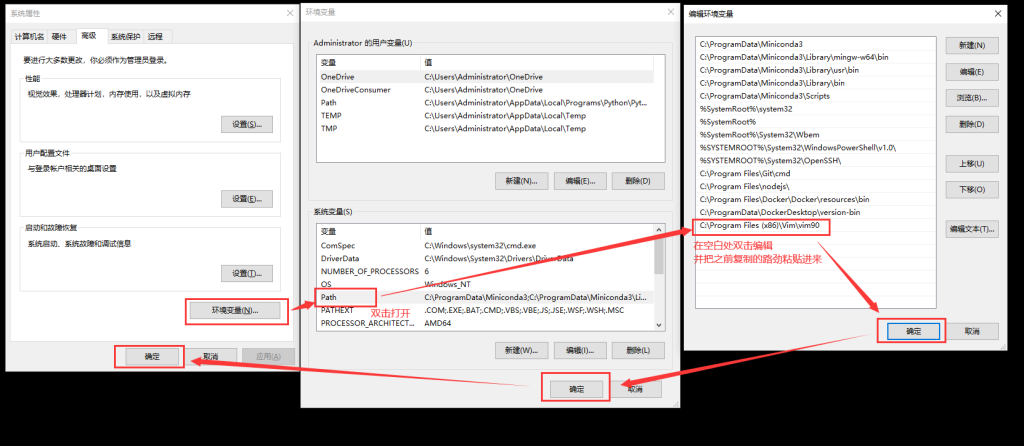
The installer can add Vim to PATH. If it does not, locate the directory containing vim.exe:
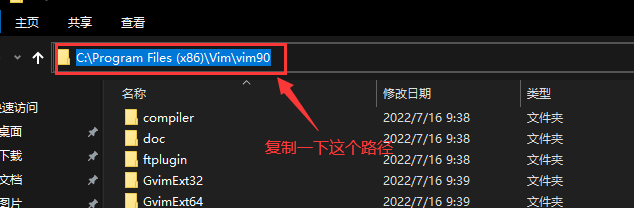
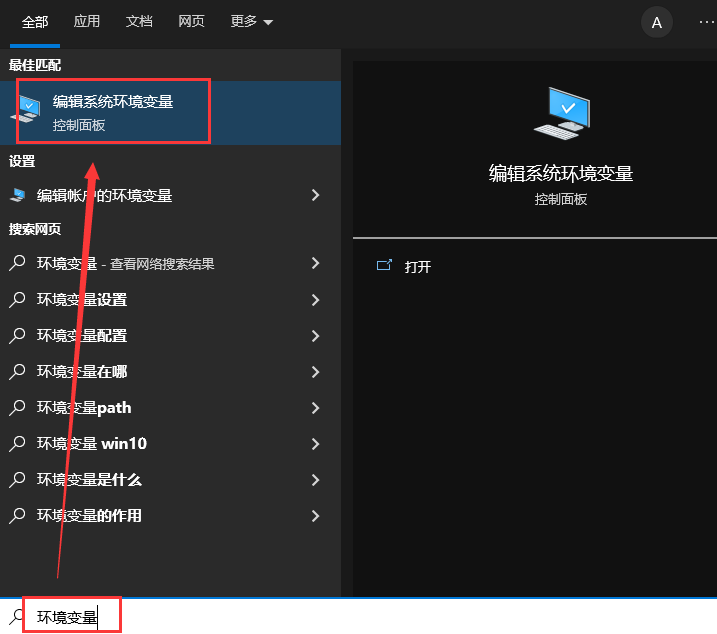
Search Windows for “environment variables,” edit the user Path, and add that directory:
Open a new PowerShell window and verify the command. The option uses two ASCII hyphens:
vim --version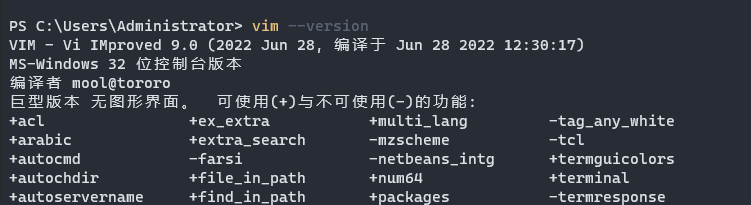
2. Configure Vim
Open the configuration file:
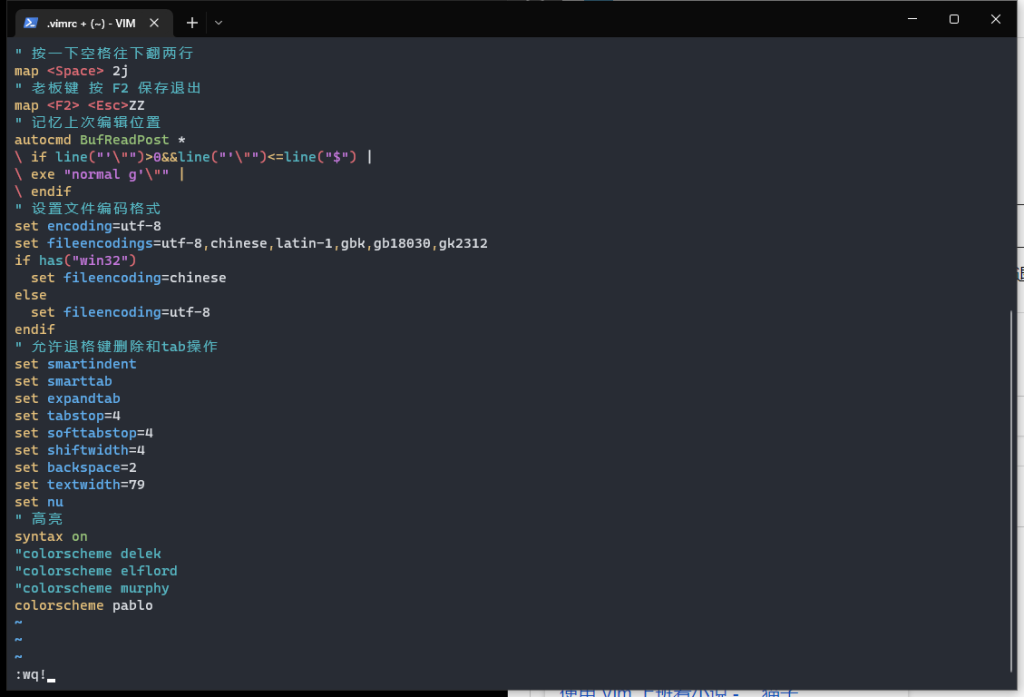
vim $HOME\_vimrcOn recent Vim builds, ~/.vimrc may also work on Windows, but _vimrc in the user profile remains a conventional Windows location. Inside Vim, press i to enter Insert mode and add:
" Move down two display lines with Space in Normal mode.
nnoremap <Space> 2gj

" Save and exit with F2.
nnoremap <F2> <Esc>:wq<CR>

" Restore the cursor to its last known position when possible.
augroup restore_cursor
  autocmd!
  autocmd BufReadPost *
        \ if line("'\"") > 1 && line("'\"") <= line("$") |
        \   execute "normal! g`\"" |
        \ endif
augroup END

set encoding=utf-8
set fileencodings=utf-8,gb18030,gbk,latin1
set wrap
set linebreak
set number
syntax on
colorscheme pablo
The source article used :wp!, which is not the save-and-quit command. Use :wq or press the mapped F2.
Press Esc, type:
:wqand press Enter.
3. Open a Book
From a terminal embedded in VS Code, PyCharm, or another development tool:
vim "C:\Users\YourName\Documents\Books\book.txt"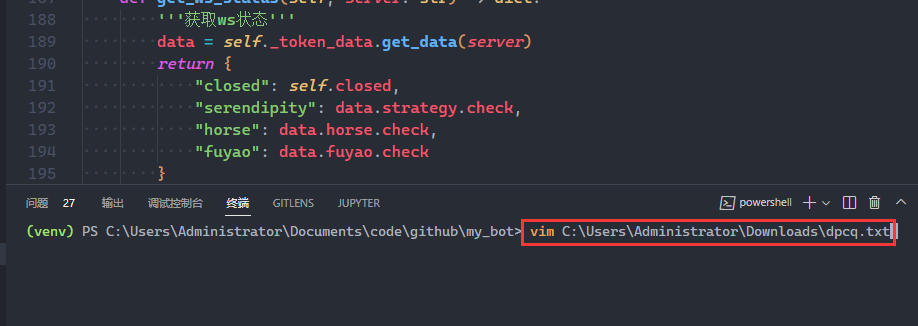
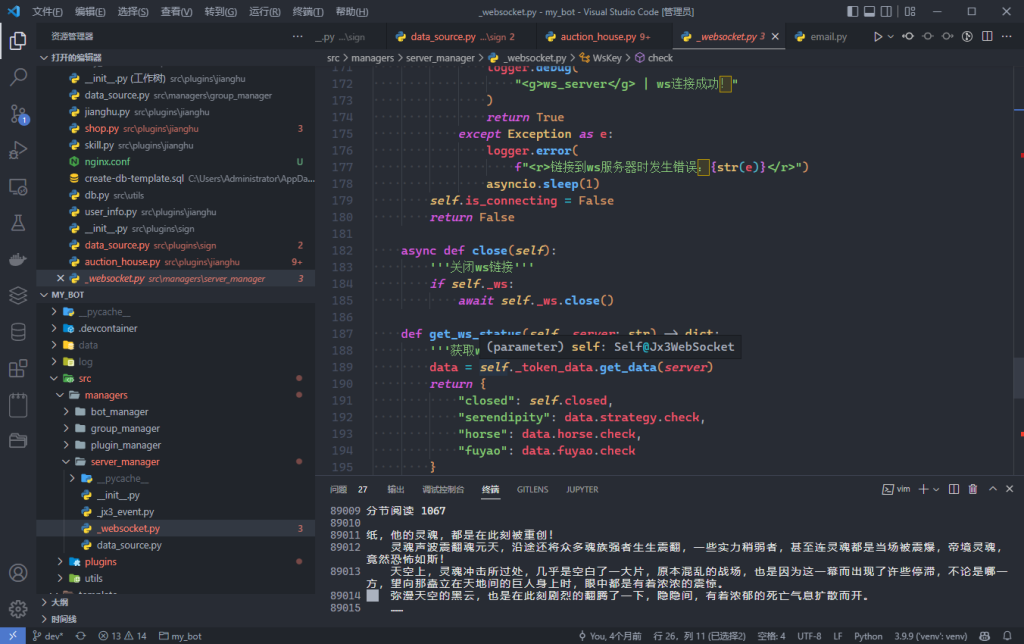
In Normal mode:
- press
Spaceto move down two wrapped display lines; - press
F2to save and exit; and - reopen the file to return to the last stored cursor position.
If Vim does not remember the position, confirm that the viminfo file can be written and that no privacy setting disables marks.
4. Add a PowerShell Launcher
Create the PowerShell profile if necessary:
New-Item -ItemType File -Force -Path $PROFILE
Open it:
vim $PROFILEAdd this safer, simplified launcher and change $BookDirectory:
$BookDirectory = Join-Path $HOME 'Documents\Books'
$BookStateFile = Join-Path $BookDirectory '.current-book'

function Read-Book {
    param(
        [string]$Name,
        [switch]$List,
        [switch]$OpenFolder
    )

    New-Item -ItemType Directory -Force -Path $BookDirectory | Out-Null

    if ($OpenFolder) {
        Invoke-Item $BookDirectory
        return
    }

    $books = Get-ChildItem -LiteralPath $BookDirectory -Filter '*.txt' -File

    if ($List) {
        $current = if (Test-Path -LiteralPath $BookStateFile) {
            Get-Content -LiteralPath $BookStateFile -Raw
        } else {
            ''
        }
        foreach ($book in $books) {
            $prefix = if ($book.BaseName -eq $current.Trim()) { '* ' } else { '  ' }
            "$prefix$($book.BaseName)"
        }
        return
    }

    if ($Name) {
        $selected = $books | Where-Object BaseName -eq $Name | Select-Object -First 1
        if (-not $selected) {
            throw "No book named '$Name'. Run Read-Book -List."
        }
        Set-Content -LiteralPath $BookStateFile -Value $selected.BaseName -Encoding utf8
    }

    if (-not (Test-Path -LiteralPath $BookStateFile)) {
        throw 'No default book selected. Run Read-Book -List, then Read-Book -Name <name>.'
    }

    $currentName = (Get-Content -LiteralPath $BookStateFile -Raw).Trim()
    $path = Join-Path $BookDirectory "$currentName.txt"
    if (-not (Test-Path -LiteralPath $path)) {
        throw "The selected file no longer exists: $path"
    }

    vim -- $path
}

Set-Alias rn Read-Book
This version supports Unicode paths and uses literal-path operations to avoid wildcard surprises.
Restart PowerShell, then:
# Open the folder.
rn -OpenFolder

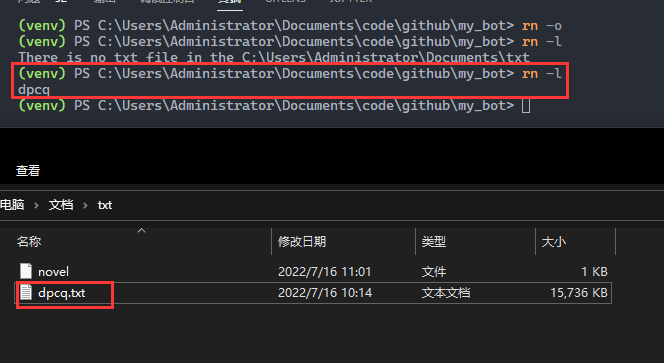
# List available .txt files.
rn -List

# Select a default book by file name without .txt.
rn -Name "Example Book"

# Open the selected book.
rn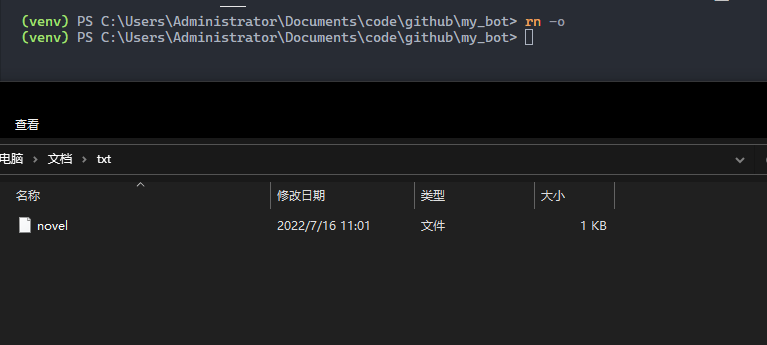

PowerShell's execution policy may prevent a profile from loading on a managed computer. Do not weaken an organization-wide policy; ask the administrator or run the commands manually.