
Telegram Registration, Privacy, and Beginner's Guide for 2026
This beginner's guide covers Telegram registration, privacy settings, groups, channels, bots, cross-device sync, and account security. Interface details and verification methods can vary by app version, country, carrier, and account, so follow the prompts shown by the current official client.
What is Telegram?

Telegram is a cloud-based messaging service founded by Pavel Durov and launched in 2013. It supports synchronized chats across phones and computers, large groups and broadcast channels, bots, voice and video calls, and file sharing.
Its privacy model needs one important distinction:
- Cloud Chats, including ordinary one-to-one and group chats, are stored in Telegram's cloud and sync across devices. They are not end-to-end encrypted.
- Secret Chats are device-specific one-to-one conversations with end-to-end encryption and optional self-destruct timers. They do not sync through the cloud.
See Telegram's official FAQ for the platform's explanation of these two chat types.
Registration walkthrough
Step 0: prepare a number you control
Telegram accounts are tied to mobile telephone numbers. Use a number that can receive the verification method offered by Telegram and that you expect to retain. Telegram does not support landlines for account registration.
Delivery to some +86 numbers may be unreliable. A separate overseas mobile number or eSIM may work, but disposable and rented numbers can be reassigned, blocked, or shared with other users. Losing control of the number can put the account at risk even when it worked for initial registration.
- For the source site's eSIM example, see the 9eSIM guide.
- If Telegram is unreachable on your network, see the proxy-service guide.
Another account option (sponsored)
If you prefer not to complete registration yourself, you can review Telegram账号购买 (Telegram account purchase), compare the available options and delivery instructions with your needs, and then decide whether to buy. Before paying, confirm the login method, ongoing control of the linked phone number, other active sessions, and how two-step verification and the recovery email are handed over. Buying an account does not guarantee lasting access or freedom from restrictions; do not pay if control cannot be established.
Telegram's FAQ advises retaining access to the linked number. This is a sponsored entry point; this site has not purchased or tested the seller's account delivery, and the link does not imply Telegram endorsement.
Step 1: install an official client
- iPhone or Android: use the App Store, Google Play, or the official download links for your platform.
- Windows, macOS, or Linux: download Telegram Desktop.
- Web: use Telegram Web.
Prefer Telegram's official download pages or verified store listing. Avoid repackaged clients from download sites.
Step 2: create and sign in to the account
The following screens show the flow seen by the source author. The exact order may differ in the current app.
- Open Telegram, choose the correct country code, and enter the mobile number in international format.
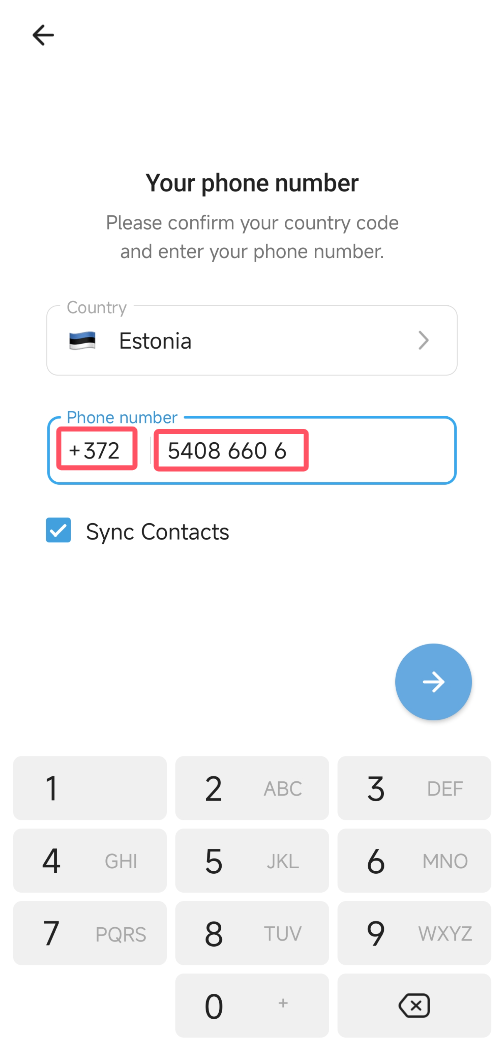
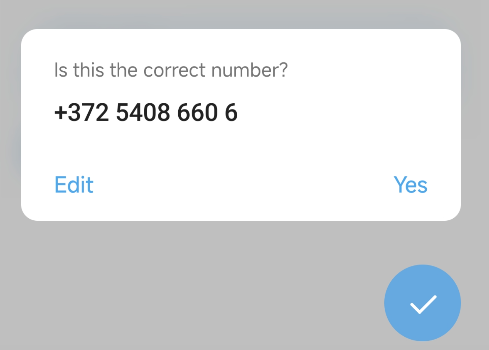
- Check the number carefully before continuing.
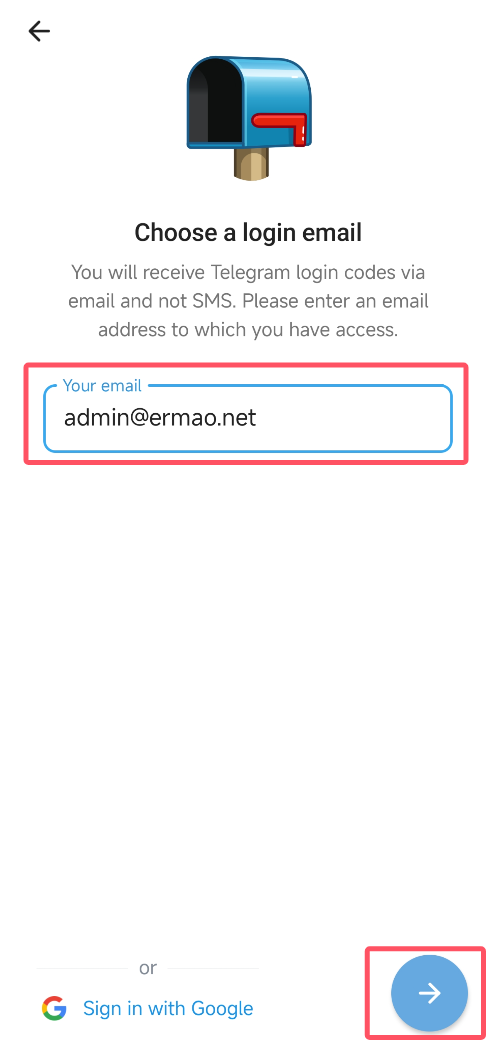
- If the app asks for an email address, enter one you control. Protect that mailbox with its own strong password and two-factor authentication.
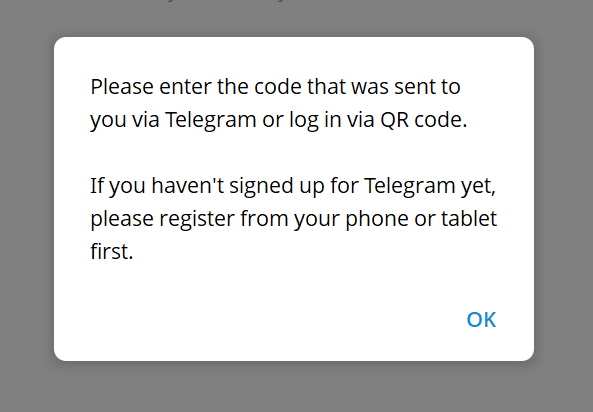
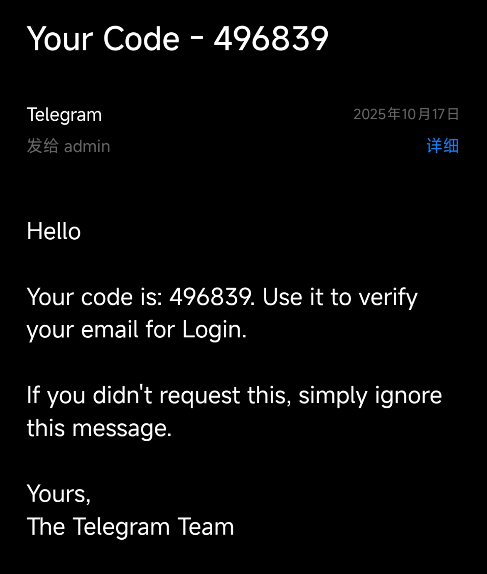
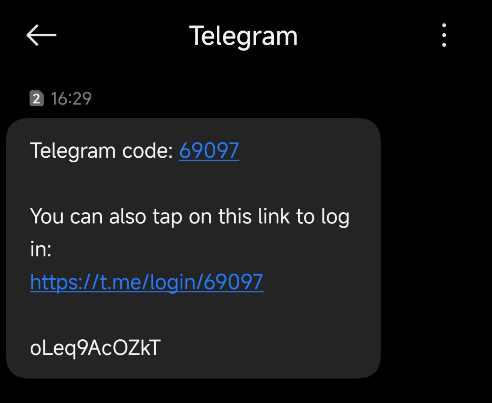
- Enter only codes requested inside the official client. Depending on the account state, Telegram may deliver a code by SMS, email, or an existing signed-in Telegram session.
Never share a login code
Telegram support, a bot, a channel administrator, or a seller does not need your login code or two-step-verification password. A request for either is an account-takeover attempt.
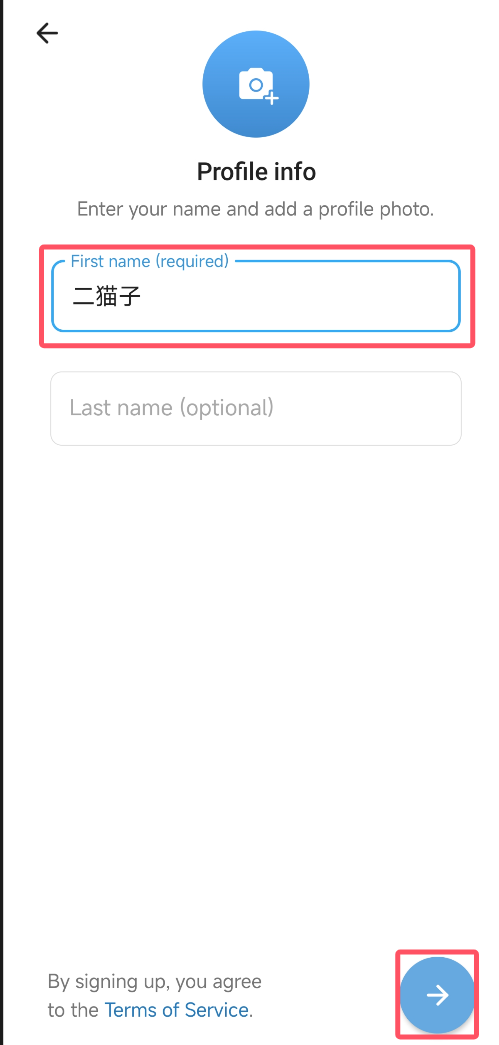
- Set the account name and, optionally, a profile photo.
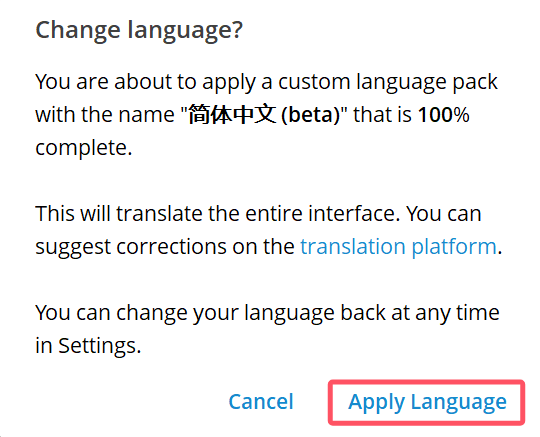
- Readers who want a Simplified Chinese interface can open the community Simplified Chinese language pack in Telegram and review it before applying.
Step 3: configure privacy and security
Open Settings → Privacy and Security. Menu wording can vary by platform.
- Two-Step Verification: add a separate account password and a protected recovery email. This password is required in addition to the login code.
- Phone Number: limit who can see the number. People who already saved it in their address book may still know it.
- Last Seen & Online, Profile Photos, Calls, and Forwarded Messages: choose the audience appropriate for each item.
- Devices / Active Sessions: review every signed-in device and terminate sessions you do not recognize.
- Passcode Lock: protect the local Telegram app. This is separate from the account's two-step-verification password.
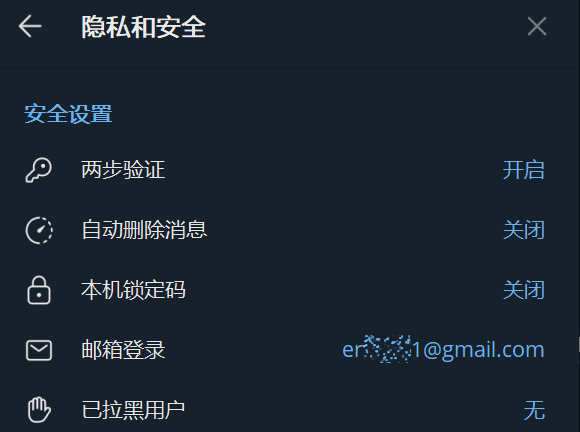
Telegram's account-security FAQ recommends two-step verification and terminating an old device's session when a phone is lost.
Core features
Groups and channels
- A group is designed for discussion and collaboration. Telegram documents support for groups with up to 200,000 members, plus topics, replies, polls, permissions, and moderation tools.
- A channel is primarily a one-to-many publishing feed. It can use scheduled posts, drafts, multiple administrators, and statistics where available.
Secret Chats
Secret Chats provide end-to-end encryption for one-to-one conversations. They are tied to the devices and login sessions on which they were created. Logging out can remove the local Secret Chat history, and those chats do not appear on a newly connected device.
Bots
Telegram bots can provide search, notifications, forms, moderation, and other automated functions. Developers create and manage bots through @BotFather and the Bot API.
A bot receives the messages and data that users send to it. Treat a third-party bot as an external service: do not send passwords, login codes, private documents, or other sensitive material.
Files and media
Telegram's official FAQ currently lists uploads of up to 2 GB per file for free users and 4 GB for Premium users. Recipients can access cloud-chat files from other signed-in devices.
Everyday workflow
- Search: see the Telegram search-bot guide.
- Saved Messages: use the private self-chat as a cross-device note and file inbox.
- Folders and archives: group conversations by topic and archive low-priority chats.
- Scheduled or silent send: hold the send button where the client supports these options.
- Edit and delete: Telegram can edit or delete sent messages, but another person may already have copied, forwarded, or captured them.
Frequently asked questions
Can I use Telegram without a telephone number?
An account must be connected to a mobile number. If you do not want to expose a personal number, a separate number can reduce direct linkage, but it must remain under your control. Configure phone-number visibility after registration.
How is Telegram different from WhatsApp?
Telegram emphasizes cloud synchronization, large public communities, bots, usernames, and large file transfers. Its ordinary Cloud Chats are not end-to-end encrypted; Secret Chats are. Compare the products based on the exact threat model and features you need rather than a single “more private” label.
Do messages synchronize across devices?
Cloud Chats do. Secret Chats do not: they remain tied to their originating device and session.
Why can I not sign in on the web?
First confirm that the URL is web.telegram.org, then check whether the login code was delivered to an existing Telegram session rather than by SMS. Regional network restrictions, a stale client, or an account-specific verification step may also interfere. Use an official desktop or mobile client when the web flow fails.
Why is a new account restricted?
Telegram limits accounts reported for unsolicited messages. Avoid bulk invitations and messages to strangers. Use @SpamBot inside Telegram to view the restriction information offered for the account.
Security checklist
- Enable Two-Step Verification and protect its recovery email.
- Set a local Passcode Lock on shared or easily accessed devices.
- Review Devices / Active Sessions regularly.
- Use Secret Chats only when their device-specific behavior matches the use case; they cannot protect a compromised or unlocked endpoint.
- Follow Telegram's rules and the laws that apply to you.
For account-specific changes, check the current official Telegram FAQ. Questions about this guide can be left in the comments or sent to admin@ermao.net.